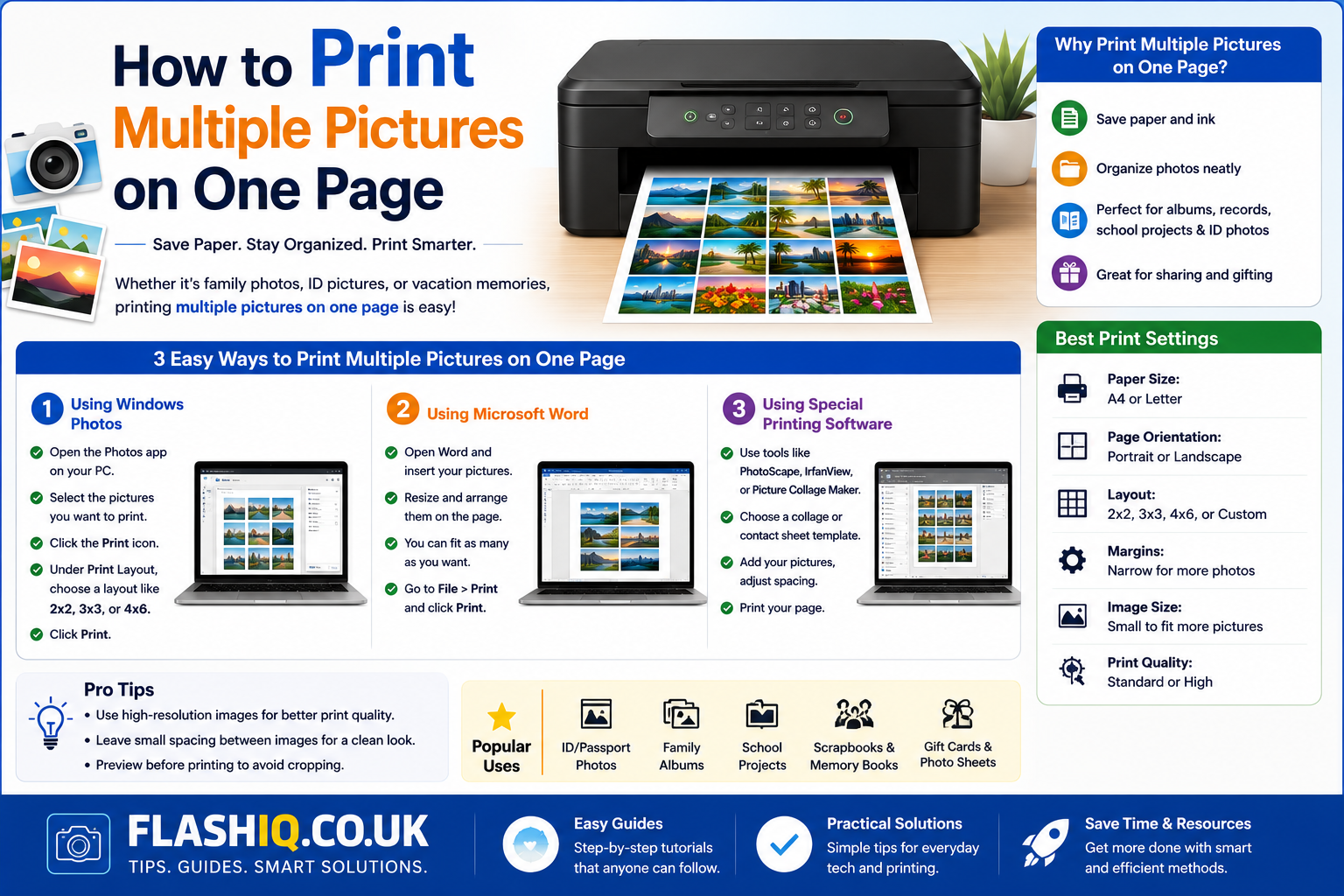
How to Print Multiple Pictures on One Page
If you’ve ever wanted to create a photo collage, print passport-size photos, or save paper by placing several images on a single sheet, learning how to print multiple pictures on one page is an essential skill. Whether you’re using Windows, macOS, or an online printing tool, the process is much easier than most people think.
Many users search for how to print multiple pictures on one page because they want a faster and more organized way to print family photos, school projects, business images, or crafts. Instead of printing one image per sheet, you can fit several photos onto a single page without sacrificing quality.
This guide explains how to print multiple pictures on one page using different methods, compares the best software, and helps you choose the right solution for your needs.
Quick Summary
- Learn how to print multiple pictures on one page in Windows.
- Print several photos on a single sheet using built-in tools.
- Discover software that simplifies photo layouts.
- Save paper, ink, and printing costs.
- Compare the best applications for printing multiple images.
- Find the easiest solution for beginners and professionals.
Best Software for Printing Multiple Pictures
| Software | Platform | Best For | Key Features | Free Version | Ease of Use |
|---|---|---|---|---|---|
| Microsoft Photos | Windows | Everyday home users | Built-in printing layouts, multiple photo templates, easy printing wizard | Yes | ⭐⭐⭐⭐⭐ |
| Adobe Express | Web | Quick online photo sheets | Drag-and-drop layouts, collage templates, browser-based editing | Yes | ⭐⭐⭐⭐☆ |
| Canva | Web, Windows, Mac | Creative photo printing | Custom grids, printable templates, high-quality exports | Yes | ⭐⭐⭐⭐⭐ |
| PhotoScape X | Windows, Mac | Collages and photo sheets | Batch editing, collage maker, print layouts | Yes | ⭐⭐⭐⭐☆ |
| Epson Easy Photo Print | Windows | Epson printer owners | Automatic photo arrangement, borderless printing, paper optimization | Yes | ⭐⭐⭐⭐☆ |
Why Print Multiple Pictures on One Page?
Printing several photos together offers many advantages beyond saving paper. Understanding how to print multiple pictures on one page helps improve efficiency while reducing printing costs.
Save Paper
Instead of using one sheet for every image, you can print four, six, eight, or even sixteen pictures on a single page.
Reduce Ink Usage
Printing several images together usually consumes less ink compared to individual print jobs.
Create Photo Collages
Many people use how to print multiple pictures on one page techniques to make memory boards, greeting cards, classroom materials, or family albums.
Faster Printing
Sending one print job with multiple images is often quicker than printing each picture separately.
Common Ways to Print Multiple Pictures
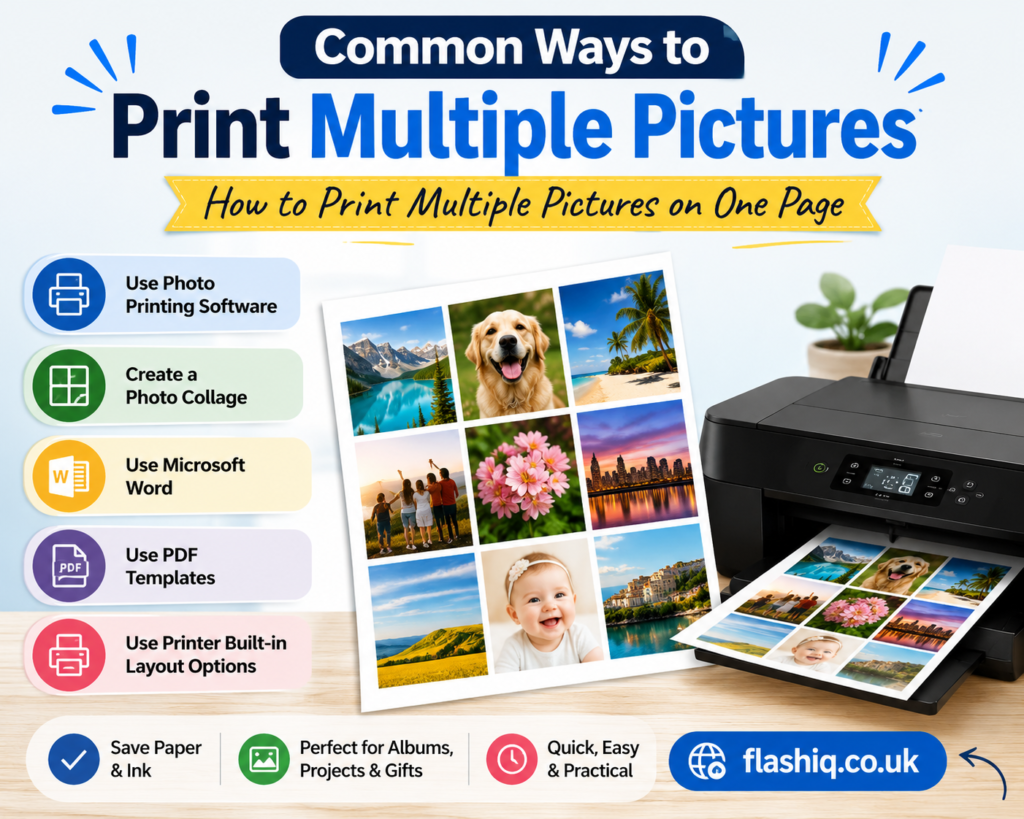
There are several methods available depending on your operating system and printer.
Windows Built-in Photo Printing
Windows includes a photo printing wizard that automatically arranges multiple pictures on one page.
Mac Preview
macOS users can create contact sheets or print several images using Preview and Photos.
Online Design Tools
Web applications allow you to upload photos, organize layouts, and print directly.
Professional Printing Software
Dedicated applications provide advanced layouts, spacing controls, borders, and image enhancements.
How to Print Multiple Pictures on One Page in Windows
Windows offers one of the easiest methods for how to print multiple pictures on one page without installing additional software.
Step 1
Open the folder containing your images.
Step 2
Select all photos you want to print.
Step 3
Right-click and choose Print.
Step 4
Select your printer.
Step 5
Choose a layout such as:
- Wallet
- Contact Sheet
- 3.5 × 5
- 5 × 7
- Full Page
- Multiple small photos
Step 6
Adjust paper size, quality, and number of copies.
Step 7
Click Print.
This is one of the fastest ways to learn how to print multiple pictures on one page without additional software.
Benefits of Printing Multiple Photos Together
Better Organization
Photo collections become easier to store and share.
Lower Printing Costs
Printing several pictures on one sheet reduces expenses.
Ideal for School Projects
Teachers and students frequently use how to print multiple pictures on one page for assignments and presentations.
Perfect for Crafts
Scrapbooks, journals, planners, and DIY decorations benefit from multi-photo layouts.
Easy Photo Sharing
Friends and family receive several printed memories on one page rather than individual prints.
When Should You Print Multiple Pictures on One Page?
Learning how to print multiple pictures on one page is useful when:
- Printing passport photos
- Creating mini photo albums
- Making greeting cards
- Printing product images
- Preparing classroom materials
- Designing mood boards
- Creating family collages
- Saving printer paper
- Printing photo proofs
- Organizing travel pictures
By choosing the appropriate layout and software, how to print multiple pictures on one page becomes a quick, practical, and cost-effective solution for both personal and professional printing tasks.
| Software | Platform | Best For | Key Features | Free Version | Ease of Use |
|---|---|---|---|---|---|
| GIMP | Windows, Mac, Linux | Advanced image layouts | Layers, custom page sizes, printable image arrangements, open-source editing | Yes | ⭐⭐⭐☆☆ |
| IrfanView | Windows | Fast batch printing | Batch image selection, thumbnail printing, lightweight performance | Yes | ⭐⭐⭐⭐☆ |
| HP Smart | Windows, Mac, Android, iOS | HP printer users | Photo printing, multiple image layouts, printer management | Yes | ⭐⭐⭐⭐⭐ |
| Fotor | Web, Windows, Mac | Online collage printing | Ready-made templates, drag-and-drop editor, high-quality exports | Yes | ⭐⭐⭐⭐☆ |
| Google Docs | Web | Simple document printing | Insert multiple images, resize manually, print directly from browser | Yes | ⭐⭐⭐⭐☆ |
Feature Comparison Table
| Feature | Microsoft Photos | Canva | Adobe Express | PhotoScape X | GIMP | IrfanView | HP Smart | Fotor | Google Docs | Epson Easy Photo Print |
| Multiple Photos Per Page | ✅ | ✅ | ✅ | ✅ | ✅ | ✅ | ✅ | ✅ | ✅ | ✅ |
| Drag-and-Drop Layout | ❌ | ✅ | ✅ | ✅ | ❌ | ❌ | ❌ | ✅ | ✅ | ❌ |
| Custom Layouts | Limited | Excellent | Excellent | Good | Excellent | Basic | Basic | Good | Basic | Basic |
| Batch Printing | ✅ | ❌ | ❌ | ✅ | Limited | ✅ | ✅ | ❌ | ❌ | ✅ |
| Built-in Templates | Basic | Extensive | Extensive | Good | No | No | Limited | Extensive | No | Limited |
| Beginner Friendly | ⭐⭐⭐⭐⭐ | ⭐⭐⭐⭐⭐ | ⭐⭐⭐⭐⭐ | ⭐⭐⭐⭐☆ | ⭐⭐⭐☆☆ | ⭐⭐⭐⭐☆ | ⭐⭐⭐⭐⭐ | ⭐⭐⭐⭐☆ | ⭐⭐⭐⭐☆ | ⭐⭐⭐⭐☆ |
Pricing Comparison Table
| Software | Free Plan | Premium Price (Approx.) | Best Value |
| Microsoft Photos | Yes | Included with Windows | Excellent |
| Canva | Yes | From $12.99/month | Excellent |
| Adobe Express | Yes | From $9.99/month | Very Good |
| PhotoScape X | Yes | One-time purchase (Mac App Store) | Very Good |
| Epson Easy Photo Print | Yes | Free | Excellent |
| GIMP | Yes | Free | Excellent |
| IrfanView | Yes (Personal Use) | Low-cost commercial license | Excellent |
| HP Smart | Yes | Optional premium features | Very Good |
| Fotor | Yes | From $8.99/month | Good |
| Google Docs | Yes | Included with Google Workspace | Excellent |
How to Choose the Right Software
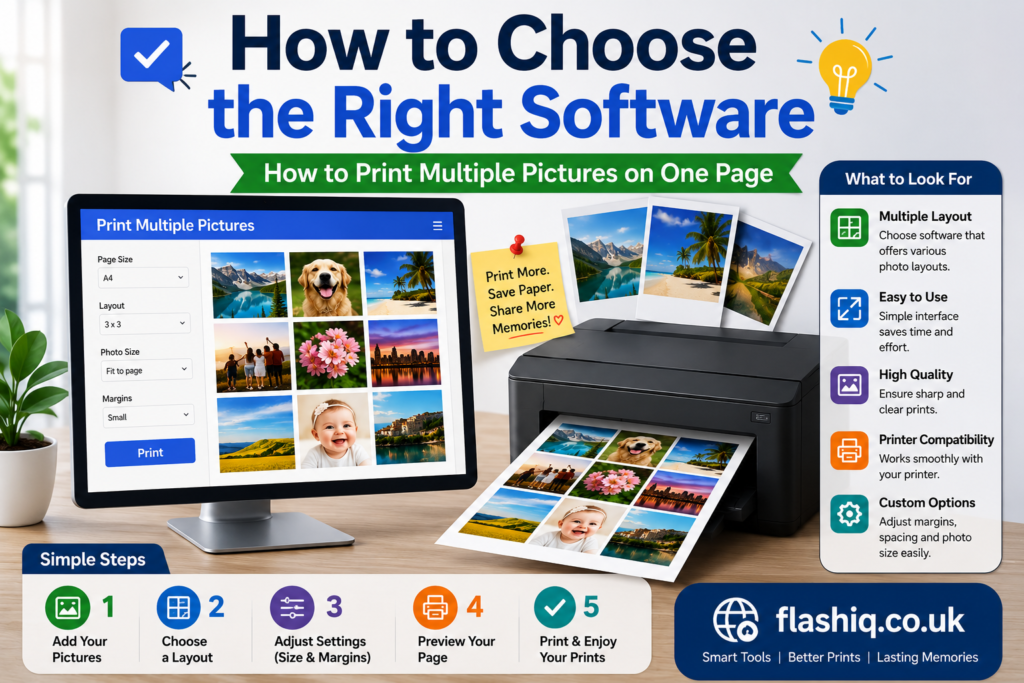
Choosing the best tool for how to print multiple pictures on one page depends on your printing needs.
Choose Microsoft Photos if:
- You use Windows.
- You want a built-in solution.
- You need fast printing without extra software.
Choose Canva if:
- You want creative layouts.
- You design photo collages.
- You need professional-looking templates.
Choose Adobe Express if:
- You prefer browser-based editing.
- You need attractive printable designs quickly.
Choose PhotoScape X if:
- You frequently edit and print photos.
- You want additional photo enhancement tools.
Choose GIMP if:
- You require complete control over image placement.
- You are comfortable with advanced editing software.
Choose HP Smart or Epson Easy Photo Print if:
- You own compatible printers.
- You want optimized printer settings with minimal setup.
Our Recommendation
For most users wondering how to print multiple pictures on one page, Microsoft Photos is the easiest and most convenient option because it is included with Windows and offers built-in multi-photo layouts.
If you want more creative control, Canva is an excellent choice thanks to its modern templates, intuitive interface, and high-quality printable designs.
Professional users who need complete customization may prefer GIMP, while PhotoScape X provides a great balance between ease of use and advanced features.
Conclusion
Learning how to print multiple pictures on one page is a practical way to save paper, reduce ink costs, and create attractive photo layouts. Whether you’re printing family memories, school projects, business materials, or creative collages, there are plenty of tools available to simplify the process.
Windows users can rely on the built-in Microsoft Photos app, while Canva, Adobe Express, and PhotoScape X offer additional flexibility for customized layouts. By selecting the software that matches your needs, you can print multiple images efficiently without compromising quality.
Frequently Asked Questions
1. How do I print multiple pictures on one page in Windows?
Select your images, right-click, choose Print, select a layout, and print.
2. Can I print four photos on one sheet?
Yes. Most printing tools provide layouts for 2, 4, 6, 8, or more photos per page.
3. Does Windows include a built-in photo printing tool?
Yes. Microsoft Photos and the Windows Print Wizard support multiple-photo layouts.
4. Can I print different image sizes on one page?
Yes. Applications like Canva and GIMP allow custom sizing and placement.
5. Is Canva free for printing photo layouts?
Yes. Canva offers a free version with many printable templates.
6. Which software is best for beginners?
Microsoft Photos is ideal for beginners due to its simple interface and built-in functionality.
7. Will printing multiple pictures reduce image quality?
Not if you use high-resolution images and appropriate print settings.
8. Can I print multiple passport photos on one page?
Yes. Many photo printing applications include passport-size templates or allow custom layouts.
Quick Bio
Flashiq.co.uk publishes practical technology guides, software comparisons, troubleshooting tutorials, and productivity tips to help users solve everyday computer and printing problems with clear, beginner-friendly instructions.