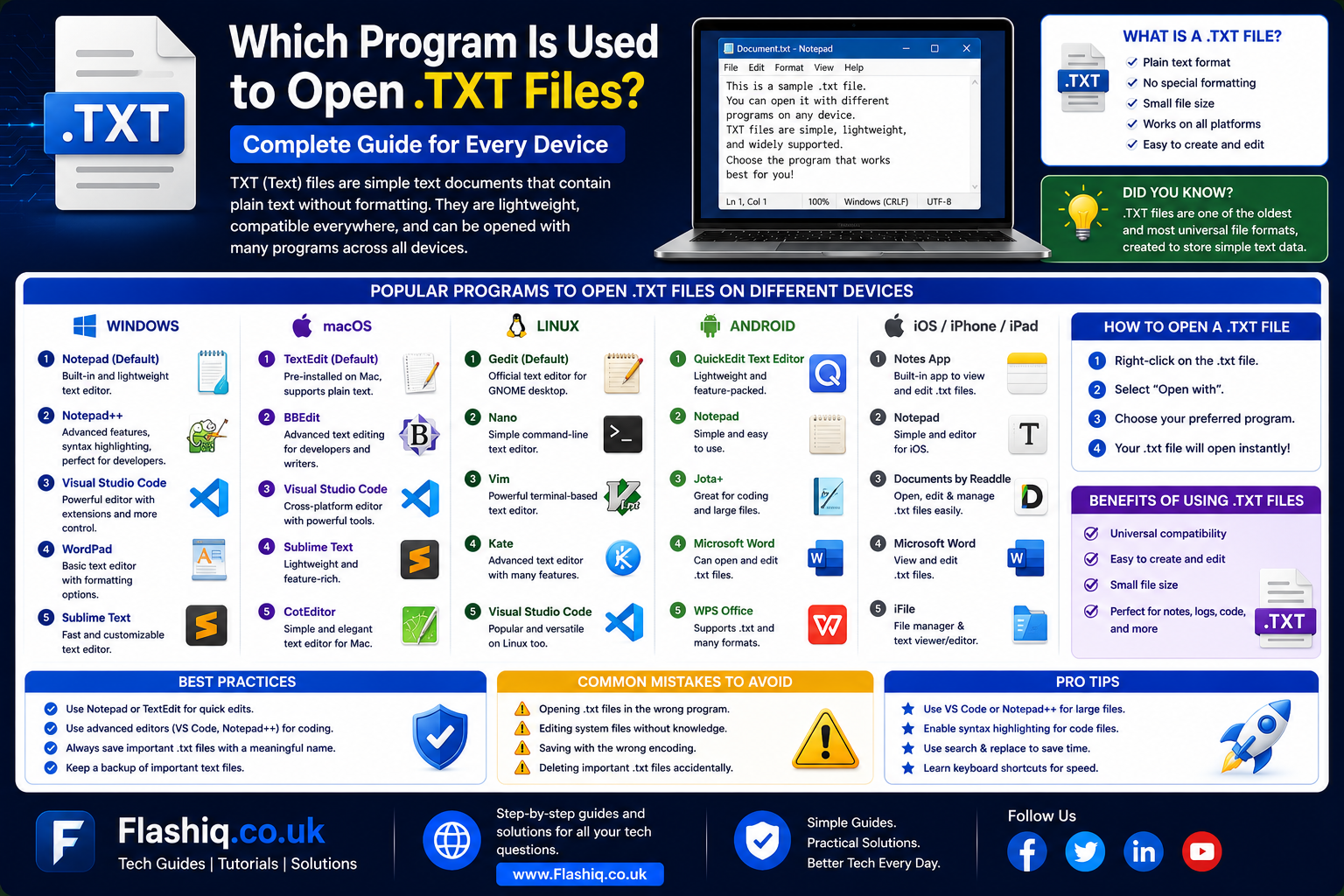
Which Program Is Used to Open .TXT Files? Complete Guide for Every Device
If you’ve ever downloaded a document ending with the .txt extension, you may have wondered, which program is used to open .txt files? The good news is that TXT files are among the simplest and most compatible file formats ever created. Unlike Word documents, spreadsheets, or PDFs, a TXT file contains plain text without formatting, making it easy to open on almost any operating system. Whether you’re using Windows, macOS, Linux, Android, or iPhone, there are multiple applications capable of displaying and editing these files. Understanding which program is used to open .txt files? helps you choose the right tool for reading notes, editing code, viewing logs, or modifying configuration files. Many users assume they need expensive software, but that’s rarely the case. In fact, most devices already include a built-in program designed specifically for plain text documents. This guide explains everything you need to know while helping you select the best application for your needs.
Quick Answer
If you’re asking which program is used to open .txt files?, the simplest answer is that every major operating system includes a built-in text editor. Windows uses Notepad, macOS includes TextEdit, and Linux distributions commonly provide editors such as Gedit, Kate, or Nano. You can also open TXT files using advanced editors like Notepad++, Visual Studio Code, and Sublime Text if you need extra features. Even Microsoft Word, Google Docs, and many web browsers can display plain text documents. Because TXT files are universally supported, you rarely need to install special software. The best choice depends on whether you only need to read the file or plan to edit its contents extensively. Understanding which program is used to open .txt files? allows you to work more efficiently across different devices and workflows.
What Is a TXT File?
A TXT file is a plain text document that stores characters without formatting such as fonts, colors, images, tables, or embedded objects. Unlike DOCX or PDF files, TXT files focus entirely on readable text, making them lightweight and highly compatible. Developers frequently use TXT files for configuration settings, scripts, logs, documentation, and notes because nearly every operating system can read them. Businesses also use TXT files to exchange data between applications due to their simple structure. When people ask which program is used to open .txt files?, they often don’t realize that plain text is one of the oldest and most universal digital formats. Since TXT files contain only text, they load quickly, occupy very little storage space, and remain accessible even decades later. Their simplicity also reduces compatibility issues when moving files between Windows, macOS, Linux, and mobile devices. Understanding the nature of TXT files makes it easier to decide which editor best matches your daily tasks.
Common Characteristics of TXT Files
TXT files are intentionally simple, making them reliable across almost every platform. They don’t preserve formatting like bold text, images, hyperlinks, or page layouts. Instead, they focus entirely on readable characters encoded using standards such as ASCII or UTF-8. Because of this simplicity, they’re commonly used by programmers, system administrators, writers, and IT professionals. Many applications generate TXT files for logs, exports, installation instructions, and configuration settings. If you’ve been wondering which program is used to open .txt files?, the answer depends more on your editing needs than on the file itself. Since TXT files contain plain text, virtually every text editor can display them correctly. Their universal compatibility continues to make them one of the most widely used document formats today.
Which Program Is Used to Open .TXT Files? Built-in Applications
The answer to which program is used to open .txt files? varies slightly depending on your operating system, but every modern platform includes a default application. These built-in editors provide everything most users need for reading and making basic edits without downloading additional software. They’re lightweight, launch quickly, and consume very few system resources. For everyday notes, instructions, and configuration files, these default programs are usually sufficient. They also preserve the plain-text nature of the document without adding unnecessary formatting. While advanced editors offer more functionality, built-in applications remain the easiest starting point for most users. Knowing which default editor comes with your device saves time and prevents unnecessary software installations. Below are the most common built-in programs across major operating systems.
Windows: Notepad
For Windows users, the answer to which program is used to open .txt files? is almost always Notepad. This classic application has been included with Microsoft Windows for decades and remains the default choice for plain text documents. Notepad opens instantly, provides a clean interface, and supports basic editing features such as search, replace, copy, paste, and word wrap. Recent Windows versions have improved Notepad by adding tabs, dark mode, automatic saving, and enhanced Unicode support. These improvements make it more practical than earlier versions while maintaining its simplicity. Since every Windows installation includes Notepad, users rarely need additional software for basic TXT file editing. It’s especially useful for viewing logs, reading instructions, editing scripts, and modifying configuration files. For many everyday tasks, Notepad fully answers the question, which program is used to open .txt files?
macOS: TextEdit
Mac users have an equally straightforward solution when asking which program is used to open .txt files? Apple’s built-in TextEdit application handles both rich text and plain text documents with ease. Users can switch between formatted documents and plain text mode depending on their needs. TextEdit provides a clean interface that integrates naturally with the macOS environment while supporting standard editing features. It works well for writing notes, editing configuration files, reviewing documentation, and opening downloaded TXT documents. Since TextEdit ships with every Mac, there’s no need for third-party software in most situations. Users can also save documents directly as plain text to maximize compatibility with other operating systems. Its simplicity makes it ideal for beginners while remaining useful for experienced users.
Linux: Gedit, Kate, Nano, and More
Linux users enjoy several excellent options when considering which program is used to open .txt files? Desktop environments commonly include editors such as Gedit, Kate, Mousepad, Pluma, or Xed depending on the Linux distribution. Terminal users often rely on Nano, Vim, or Emacs for command-line editing. Each application serves different skill levels and workflows while supporting standard TXT documents. Beginners often prefer graphical editors because they resemble familiar Windows applications. Developers frequently choose terminal editors for faster remote administration and scripting. Since Linux emphasizes flexibility, users can install whichever editor best fits their workflow. Regardless of the application chosen, opening plain text files remains fast, reliable, and universally supported.
Best Third-Party Programs to Open TXT Files
Although built-in editors work well for everyday use, many professionals prefer more advanced applications. If you’re researching which program is used to open .txt files? for programming, web development, large documents, or advanced editing, third-party editors provide significantly more functionality. These programs include syntax highlighting, plugins, automatic backups, multiple tabs, code folding, powerful search features, and customizable interfaces. They also handle very large files more efficiently than many built-in editors. Whether you’re editing configuration files, writing scripts, or managing programming projects, these applications improve productivity considerably. Most of them are available free of charge or offer generous free versions. Choosing the right editor depends on your specific workflow and technical requirements.
Notepad++
Notepad++ remains one of the most popular Windows text editors for both beginners and professionals. Many users searching which program is used to open .txt files? eventually discover Notepad++ because it offers advanced capabilities while remaining lightweight. It supports hundreds of programming languages through syntax highlighting, includes automatic session recovery, allows editing multiple files simultaneously, and offers an extensive plugin ecosystem. Despite its professional features, the interface remains approachable for casual users. Large TXT files open quickly, and powerful search tools simplify editing lengthy documents. System administrators and developers especially appreciate its speed and reliability. For Windows users needing more than standard Notepad, Notepad++ is often the preferred upgrade.
Visual Studio Code
Visual Studio Code has become one of the world’s most widely used text and code editors. Although primarily designed for software development, it also serves as an excellent solution for anyone asking which program is used to open .txt files? The editor provides intelligent search, extensions, version control integration, customizable themes, split-screen editing, and exceptional performance. Users can open simple TXT documents just as easily as complex programming projects. Cross-platform compatibility allows seamless work across Windows, macOS, and Linux. Because of its flexibility, Visual Studio Code has become a favorite among developers, technical writers, and IT professionals. Even users who only occasionally edit TXT files appreciate its modern interface and extensive capabilities.
When Should You Use a Basic Editor Instead of an Advanced Editor?
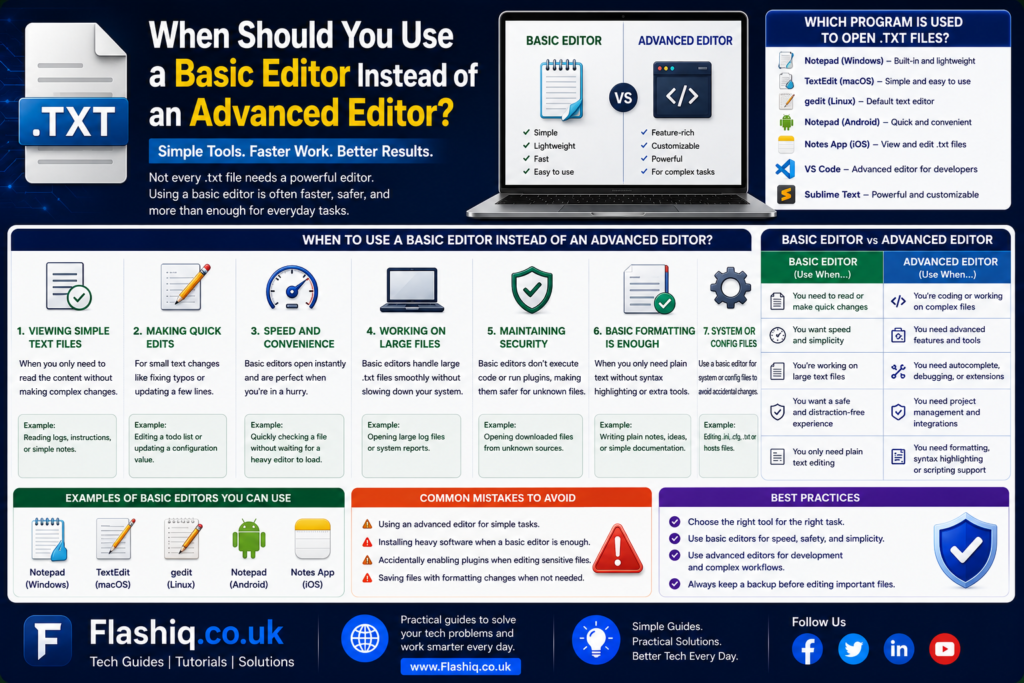
Choosing the right application depends largely on your purpose rather than the file itself. Someone asking which program is used to open .txt files? should first determine whether they simply need to read the document or perform advanced editing. Basic editors are ideal for quick notes, viewing instructions, editing simple configuration files, and making minor corrections. They launch almost instantly, use minimal memory, and avoid unnecessary distractions. Advanced editors become valuable when working with programming languages, extremely large documents, automation scripts, or multiple files simultaneously. Features such as syntax highlighting, advanced search, version control, and plugins significantly improve productivity for technical users. Casual users, however, often benefit from the simplicity of built-in applications. Understanding your workflow helps you choose the most efficient editor rather than the most feature-rich one.
How to Open a TXT File on Different Devices
Opening a TXT file is usually straightforward, regardless of the device you use. Once you understand which program is used to open .txt files?, you can access these documents in just a few clicks. Most operating systems automatically associate TXT files with a default text editor, allowing you to open them by double-clicking. If the default application has changed or the file isn’t opening correctly, you can manually select another compatible editor. Mobile devices also provide built-in or downloadable apps that support plain text documents. Cloud storage services make it even easier to access TXT files across multiple devices without compatibility issues. Since TXT files are lightweight, they open almost instantly even on older hardware. The following sections explain the process for the most common platforms.
Opening TXT Files on Windows
Windows automatically opens TXT files using Notepad unless another application has been assigned as the default. If you’re still wondering which program is used to open .txt files?, simply right-click the file, choose Open With, and select Notepad, Notepad++, Visual Studio Code, or another text editor. You can also set a permanent default application through Windows Settings so future TXT files always open with your preferred editor. If the file contains programming code or configuration settings, using an advanced editor may improve readability through syntax highlighting. For ordinary notes and documentation, Notepad remains an excellent choice. Even very old Windows versions support TXT files without requiring additional software. This universal compatibility is one of the reasons TXT remains popular today.
Opening TXT Files on macOS, Linux, Android, and iPhone
Mac users can double-click a TXT document to launch TextEdit, while Linux users typically open TXT files with the default editor provided by their desktop environment. Android users can access TXT files through Google Files, Google Docs, or numerous free text editor apps available from the Play Store. On iPhones and iPads, the Files app, Notes app, and many third-party editors allow users to read and edit plain text documents with ease. Cloud services like OneDrive, Google Drive, and iCloud Drive make synchronizing TXT files effortless across multiple devices. Since TXT files contain only plain text, they require very little processing power or storage space. This means even entry-level smartphones can open them instantly. Knowing which program is used to open .txt files? ensures a consistent experience regardless of the platform you’re using.
Can Microsoft Word Open TXT Files?
Many users assume Microsoft Word only works with DOCX documents, but it can also open TXT files without difficulty. When considering which program is used to open .txt files?, Microsoft Word is certainly an option, although it is not always the most practical one. Word imports plain text and allows users to apply formatting, fonts, images, and layouts afterward. This makes it useful when converting simple text into a professionally formatted document. However, because Word automatically adds formatting features, it may not be the best choice for editing configuration files, source code, or scripts that require pure plain text. Saving the document in DOCX format also changes its structure compared to the original TXT file. For technical work, dedicated text editors remain the preferred solution. Nevertheless, Word offers an accessible option for users who already have Microsoft Office installed.
Can Web Browsers Open TXT Files?
Modern web browsers such as Google Chrome, Microsoft Edge, Mozilla Firefox, and Safari can display TXT files directly. This surprises many people researching which program is used to open .txt files? because browsers are not traditionally considered text editors. When you drag a TXT file into a browser window or open one stored online, the browser simply renders the plain text for reading. While this method is excellent for viewing content, browsers generally do not provide editing capabilities. If changes need to be made, the file should be opened in a dedicated text editor instead. Browsers are particularly useful for reviewing log files, documentation, exported reports, or programming examples hosted online. Since no formatting is involved, the displayed content remains accurate and easy to read. This flexibility adds another convenient option for accessing TXT documents.
Comparing the Best Programs for TXT Files
The ideal application depends on your editing requirements, technical experience, and operating system. Some users only need a lightweight editor for reading notes, while others require professional development tools. The comparison below highlights the strengths of the most common TXT editors.
| Program | Best For | Operating System | Beginner Friendly | Advanced Features |
|---|---|---|---|---|
| Notepad | Basic editing | Windows | Yes | Limited |
| TextEdit | General text editing | macOS | Yes | Moderate |
| Gedit | Everyday editing | Linux | Yes | Moderate |
| Notepad++ | Programming & large files | Windows | Yes | Excellent |
| Visual Studio Code | Development & scripting | Windows, macOS, Linux | Moderate | Extensive |
| Sublime Text | Fast editing | Windows, macOS, Linux | Yes | Excellent |
| Nano | Terminal editing | Linux | Moderate | Good |
| Vim | Advanced administration | Windows, macOS, Linux | No | Exceptional |
How to Change the Default Program for TXT Files
If your computer opens TXT files with an application you don’t prefer, changing the default program is simple. Understanding which program is used to open .txt files? also means knowing how to customize that choice. On Windows, right-click the TXT file, choose Open With, click Choose Another App, select your preferred editor, and check the option to always use it. macOS users can use the Get Info menu to assign a different default application for all TXT documents. Linux distributions typically provide similar options through their file manager settings. Choosing the right default editor can save time if you frequently work with plain text documents. Developers often select Visual Studio Code or Notepad++, while everyday users usually stick with the built-in editor. Making this small adjustment improves productivity and simplifies file management.
Why Some TXT Files Won’t Open
Occasionally, users encounter TXT files that refuse to open or display unreadable characters. Although the answer to which program is used to open .txt files? is usually straightforward, several factors can prevent successful access. The file may actually use a different extension that has been renamed incorrectly. It could also be damaged during downloading, stored with an unsupported text encoding, or generated by specialized software using proprietary formatting. Some extremely large log files may exceed the capabilities of lightweight editors. Security software may also block access if the file originates from an untrusted source. In enterprise environments, user permissions can prevent opening shared TXT documents. Identifying the underlying cause usually resolves the issue quickly without requiring specialized recovery software.
Common TXT File Problems and Solutions
| Problem | Possible Cause | Recommended Solution |
| File won’t open | Incorrect file association | Choose another compatible editor |
| Garbled text | Wrong encoding | Reopen using UTF-8 or Unicode encoding |
| Blank document | Corrupted file | Restore from backup or download again |
| Permission denied | Restricted access | Request proper permissions |
| Extremely slow loading | Very large file | Use Notepad++ or Visual Studio Code |
| Unknown extension | File renamed incorrectly | Verify the original file type |
Best Practices for Working with TXT Files
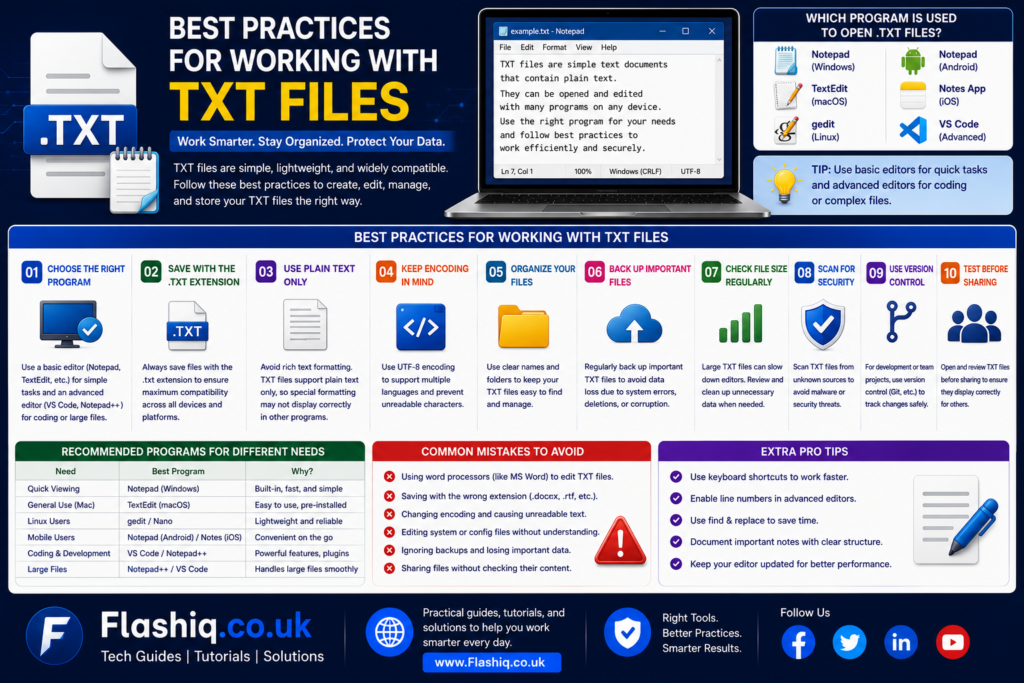
Following a few practical habits helps ensure TXT files remain accessible, secure, and compatible across different platforms.
- Save files using UTF-8 encoding whenever possible.
- Keep meaningful file names for easier organization.
- Store important TXT documents in cloud backups.
- Use advanced editors only when additional features are necessary.
- Preserve plain text when editing configuration files.
- Verify file extensions before opening unknown documents.
- Avoid converting TXT files into formatted documents unless required.
- Maintain version history for important project files.
- Scan downloaded files if they come from unfamiliar sources.
- Regularly organize text documents into clearly labeled folders.
Common Mistakes to Avoid
Many issues arise because users misunderstand how plain text documents work. Avoiding these common mistakes helps maintain compatibility and prevents accidental data loss.
- Renaming other file types to “.txt” without converting them.
- Editing system configuration files without creating backups.
- Saving plain text as formatted documents unintentionally.
- Ignoring character encoding settings.
- Opening massive log files with basic editors that struggle with large documents.
- Assuming every text editor behaves exactly the same.
- Deleting important TXT files without backups.
- Changing default applications without understanding the consequences.
Pro Tips
Professionals who regularly work with TXT files often rely on these techniques to improve efficiency.
- Use keyboard shortcuts for faster editing and navigation.
- Enable automatic backups in advanced editors.
- Learn basic search and replace functions for large documents.
- Keep multiple tabs open when comparing configuration files.
- Use dark mode for extended editing sessions.
- Install syntax-highlighting extensions if you frequently edit code.
- Save critical files in both local and cloud storage.
- Familiarize yourself with UTF-8 encoding for maximum compatibility across operating systems.
Conclusion
The question which program is used to open .txt files? has a simple answer, yet the best choice depends on how you plan to use the file. Built-in editors such as Notepad, TextEdit, and Gedit provide everything needed for everyday reading and editing of plain text documents. More advanced tools like Notepad++, Visual Studio Code, and Sublime Text offer powerful features for developers, IT professionals, and users managing larger projects. Because TXT files are universally supported, they remain one of the most reliable formats for sharing information across Windows, macOS, Linux, Android, and iOS. Understanding file associations, character encoding, and the strengths of different editors helps you avoid common compatibility problems. Whether you’re opening simple notes, configuration files, exported reports, or programming scripts, selecting the appropriate application makes your workflow faster and more efficient. With the knowledge shared in this guide, you’ll always know which program is used to open .txt files? and how to choose the best solution for any situation.
Frequently Asked Questions
1. Which program is used to open .txt files by default?
Most Windows computers use Notepad, Macs use TextEdit, and Linux systems typically use Gedit, Kate, or another built-in text editor.
2. Can Microsoft Word open TXT files?
Yes. Microsoft Word can open and edit TXT files, although dedicated text editors are generally better for maintaining plain text.
3. Is Notepad free?
Yes. Notepad comes preinstalled with Windows and is completely free to use.
4. Can I edit TXT files on my phone?
Yes. Android and iPhone both support TXT files through built-in apps and third-party text editors.
5. What is the best free editor for programming?
Visual Studio Code and Notepad++ are among the most popular free editors for programming and advanced text editing.
6. Why does my TXT file display strange symbols?
The file may have been saved using a different character encoding. Opening it with UTF-8 encoding usually resolves the issue.
7. Are TXT files safe?
TXT files generally contain plain text and are considered safe, although files from unknown sources should always be scanned before opening.
8. Can browsers open TXT files?
Yes. Most modern browsers can display TXT files for reading, but they usually don’t provide editing features.
9. What’s the difference between TXT and DOCX?
TXT files contain only plain text, while DOCX files support formatting, images, tables, and advanced document features.
10. Which editor is best for beginners?
Notepad on Windows and TextEdit on macOS are excellent beginner-friendly choices because they are simple, lightweight, and already installed.
Author Bio
About the Author
The author is an experienced technology writer specializing in Windows, macOS, productivity software, file management, and digital troubleshooting. With years of experience creating user-focused technical content, they simplify complex computing topics into practical, easy-to-follow guides that align with Google’s EEAT and Helpful Content principles. Their goal is to help readers confidently solve everyday technology challenges using accurate, up-to-date, and actionable information.