How to Capitalize All Letters in Word Easy Methods That Work
If you’ve ever typed an entire paragraph in lowercase and later realized it should have been in uppercase, you’re not alone. Many students, professionals, writers, and office workers encounter this situation while editing documents in Microsoft Word. Fortunately, learning how to capitalize all letters in Word is quick and doesn’t require retyping your content. Microsoft Word includes several built-in tools that let you instantly convert lowercase text into uppercase without changing the wording itself. These features save time, reduce errors, and improve productivity when working on reports, assignments, resumes, business documents, or presentations. Whether you’re using Microsoft Word on Windows, macOS, or Word Online, the capitalization options are easy to access once you know where to look. Understanding these formatting tools can also help you maintain consistency throughout your documents. This guide explains every practical method in a clear, beginner-friendly way while also sharing professional tips for efficient document editing.
Quick Answer
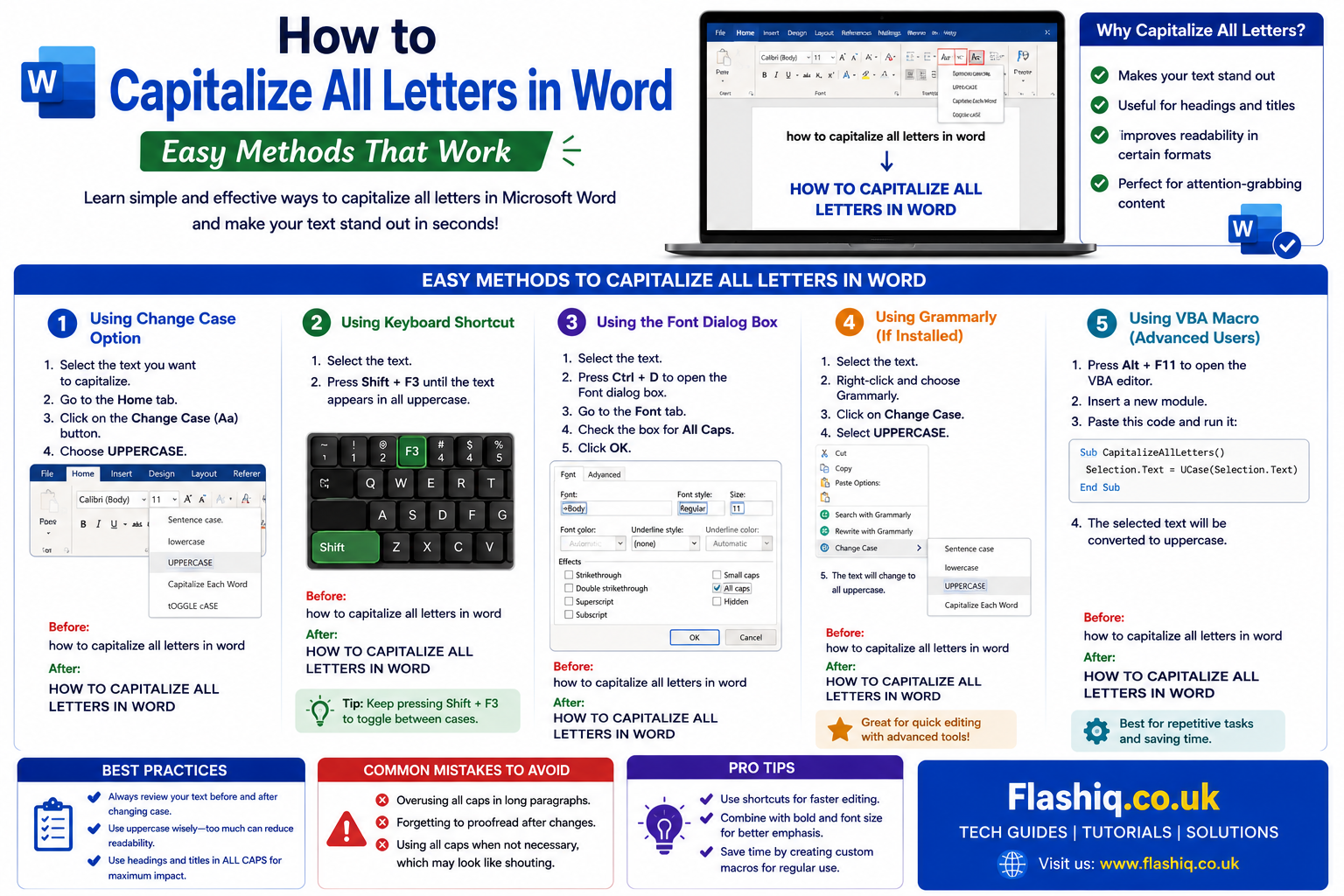
If you want to know how to capitalize all letters in Word, simply select the text you want to change, go to the Home tab, click the Change Case (Aa) button in the Font group, and choose UPPERCASE. Alternatively, on Windows you can press Shift + F3 repeatedly to cycle through lowercase, Sentence case, and UPPERCASE. This method works for individual words, complete paragraphs, and even entire documents. It is one of the fastest formatting features available in Microsoft Word and requires only a few seconds to apply.
Understanding Text Capitalization in Microsoft Word
Before learning different techniques, it’s helpful to understand how Word handles text capitalization. Microsoft Word separates capitalization from the actual text content, meaning the software changes only the appearance of letters without affecting punctuation, spacing, formatting, or document structure. This allows users to quickly adjust headings, titles, reports, contracts, and essays without manually deleting and retyping text. Capitalization tools are especially useful when copying content from emails, websites, PDFs, or scanned documents where letter cases may not be formatted correctly. Because capitalization is a formatting function, it can be reversed whenever needed without losing your original text. Knowing this distinction makes editing much faster and prevents unnecessary work during proofreading. Whether you’re preparing professional documents or academic assignments, mastering capitalization options can significantly improve editing efficiency.
Why You Might Need to Capitalize All Letters
People use uppercase text for many different reasons across personal, academic, and professional documents. Headings often appear in uppercase to increase visibility and improve organization. Legal forms, contracts, certificates, and government documents frequently require names or important sections to be written in all capital letters. Businesses also use uppercase text for branding, labels, notices, and warning messages where readability is important. Students sometimes convert titles into uppercase to match formatting guidelines provided by instructors. Editors and content creators also use uppercase when designing promotional materials or creating templates. Instead of retyping everything manually, Microsoft Word allows these formatting changes instantly, making document editing much faster and more accurate.
Method 1: Use the Change Case Button
Where to Find the Change Case Tool
The easiest way to learn how to capitalize all letters in Word is by using the built-in Change Case feature. This option is located on the Home tab within the Font section of the Word ribbon. After selecting your desired text, clicking the small Aa icon opens several capitalization options. These include Sentence case, lowercase, UPPERCASE, Capitalize Each Word, and Toggle Case. Because the feature is integrated directly into Microsoft Word, it works consistently across most recent versions of the application. It eliminates the need for external formatting tools or manual editing. Most beginners find this method the simplest because it requires only a few clicks while producing immediate results.
Steps to Capitalize All Letters
Follow these simple steps:
- Open your Microsoft Word document.
- Highlight the text you want to change.
- Click the Home tab.
- Locate the Font section.
- Select the Change Case (Aa) button.
- Choose UPPERCASE.
- Your selected text immediately converts into capital letters.
This method works equally well for a single word, multiple paragraphs, tables, headings, or an entire document. Since it changes only capitalization, your fonts, colors, spacing, and styles remain unchanged.
Method 2: Use the Shift + F3 Keyboard Shortcut
The Fastest Keyboard Method
Many experienced Word users prefer keyboard shortcuts because they reduce mouse movement and increase editing speed. One of the most useful shortcuts for how to capitalize all letters in Word is Shift + F3. After selecting text, pressing this shortcut cycles through three capitalization styles: lowercase, UPPERCASE, and Sentence case. Instead of opening menus, you simply press the keys until the desired format appears. This shortcut is especially valuable for editors, writers, students, and administrative professionals who frequently revise large documents. Since keyboard shortcuts are built into Word, they work instantly without requiring additional setup. Learning this shortcut can save significant time when formatting lengthy reports or manuscripts.
When Shift + F3 Doesn’t Work
In some situations, the keyboard shortcut may not respond as expected. Laptop keyboards often assign multimedia functions to the F keys, meaning you may need to hold the Fn key along with Shift + F3. Certain customized keyboard settings or third-party software can also interfere with shortcut behavior. Additionally, some versions of Word Online have limited keyboard shortcut support compared to the desktop application. If the shortcut fails, the Change Case button remains the most reliable alternative. Understanding both methods ensures you always have a way to change capitalization regardless of your device or Word version.
Method 3: Convert an Entire Document to Uppercase
Changing Every Letter in the Document
Sometimes you need every piece of text within a document to appear in uppercase instead of changing only selected paragraphs. In these cases, Word makes the process straightforward. Press Ctrl + A on Windows or Command + A on Mac to select the entire document. Then use either the Change Case button or the Shift + F3 shortcut to convert everything into uppercase. This approach is particularly useful for templates, forms, announcements, certificates, labels, or design mockups where uniform capitalization is required. After applying the formatting, carefully review the document because some elements, such as citations or references, may be better left in their original case. Taking a few moments to proofread ensures consistent formatting throughout the file.
Best Situations for Full-Document Capitalization
Converting an entire document into uppercase is appropriate only when it serves a specific purpose. Official forms often request names and addresses in capital letters to improve readability. Designers may use uppercase headings for posters or marketing materials to create stronger visual emphasis. Businesses sometimes format notices or warning statements entirely in uppercase to attract attention. However, long paragraphs written entirely in uppercase can reduce readability because readers rely on letter shapes to recognize words quickly. Therefore, it’s generally best to reserve full-document capitalization for documents where formatting standards specifically require it.
Method 4: Capitalize Text in Word for Mac
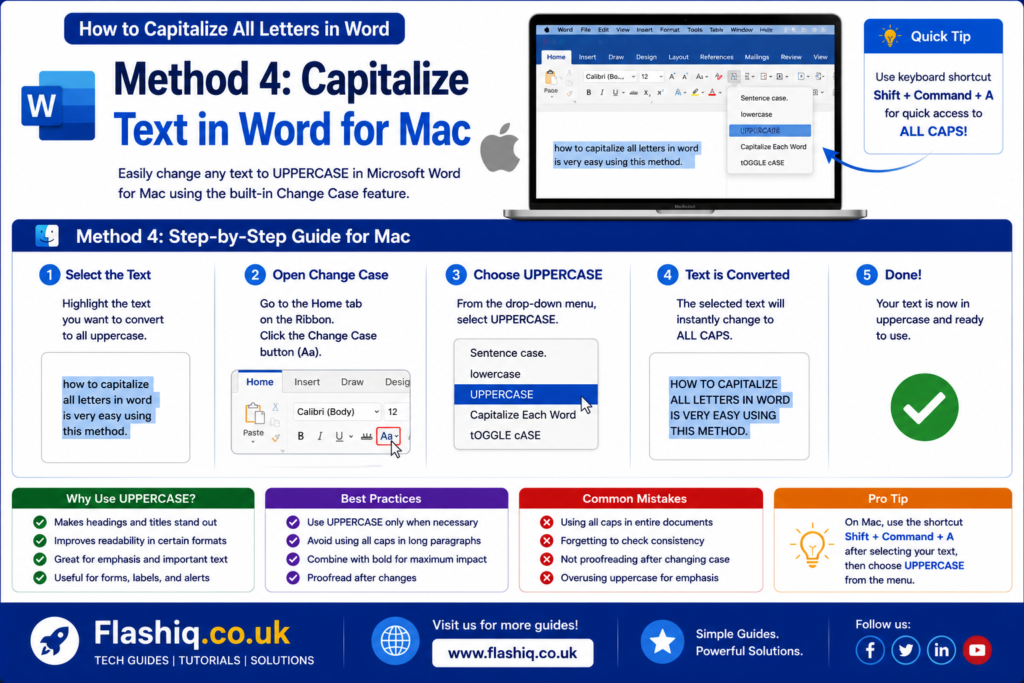
Using Microsoft Word on macOS
Mac users can also learn how to capitalize all letters in Word without any additional software. Microsoft Word for macOS includes the same Change Case functionality available on Windows, although the interface may appear slightly different depending on the version. Users simply highlight the text, navigate to the Home tab, and select the capitalization option from the Font section. Many Mac keyboards also support capitalization shortcuts, although function key settings may vary depending on system preferences. Apple users who enable standard function keys generally experience the same workflow as Windows users. Since the feature is built directly into Microsoft Word, formatting remains consistent across platforms. This compatibility is particularly useful for teams collaborating on shared documents between Windows and Mac computers.
Helpful Tips for Mac Users
Mac users should verify their keyboard settings if shortcuts do not function correctly. Some Apple keyboards prioritize media controls instead of standard function keys, requiring users to hold the Fn key before pressing shortcut combinations. Updating Microsoft Word regularly also ensures compatibility with the latest formatting features and bug fixes. If you’re working with documents shared through cloud services like OneDrive, capitalization changes synchronize automatically across supported devices. These small adjustments make editing smoother and reduce formatting inconsistencies when collaborating with others.
Method 5: How to Capitalize All Letters in Word Online
Microsoft Word Online includes many of the same formatting features as the desktop application, making it convenient for users who edit documents in a web browser. If you’re wondering how to capitalize all letters in Word while using Word Online, the process is nearly identical. Simply highlight the text you want to modify and look for the Change Case option within the Home tab. Depending on your browser or account version, the feature may appear directly on the ribbon or under additional formatting options. If the Change Case feature is unavailable in your version of Word Online, opening the document in the desktop app provides full formatting functionality. Word Online is ideal for collaborative editing because formatting changes are saved automatically and shared with collaborators in real time. Since documents are stored in the cloud, you can continue editing from another device without losing your capitalization changes. For everyday editing tasks, Word Online offers a reliable solution for managing uppercase text while maintaining compatibility with desktop versions.
Tips for Using Word Online Efficiently
When working in Word Online, use a modern browser such as Microsoft Edge, Google Chrome, Safari, or Firefox for the best experience. Browser updates often improve compatibility with Microsoft 365 features, including formatting tools. If you’re collaborating with teammates, let others know before making document-wide formatting changes to avoid confusion. Save a version history before converting large sections of text, especially in shared business documents. Taking advantage of cloud-based autosave also helps protect your work if your internet connection is interrupted.
Method 6: Change Capitalization Using Microsoft Word Mobile
Editing documents on a smartphone or tablet has become increasingly common. Microsoft Word for Android and iOS allows users to make many formatting changes directly from their mobile devices. While the interface is simplified, capitalization tools are still accessible in many versions of the app. After selecting text, open the formatting menu and look for text transformation or case options. If your mobile version lacks this feature, you can still edit the document later on a desktop computer without affecting the content. Mobile editing is particularly useful for quick revisions while traveling, attending meetings, or reviewing assignments. Although the smaller screen can make selecting text slightly more difficult, the overall process remains straightforward. This flexibility allows users to maintain consistent formatting regardless of the device they are using.
Comparing Different Ways to Capitalize Text in Word
Comparison of Available Methods
| Method | Difficulty | Speed | Best For | Works Offline |
|---|---|---|---|---|
| Change Case Button | Very Easy | Fast | Beginners | Yes |
| Shift + F3 Shortcut | Easy | Very Fast | Frequent editors | Yes |
| Select Entire Document + UPPERCASE | Easy | Fast | Large documents | Yes |
| Word for Mac | Easy | Fast | macOS users | Yes |
| Word Online | Easy | Moderate | Cloud editing | No |
| Word Mobile | Moderate | Moderate | Editing on phones/tablets | Yes (saved locally) |
Feature Comparison Table
| Feature | Change Case Button | Shift + F3 | Word Online | Mobile App |
|---|---|---|---|---|
| Converts to UPPERCASE | ✔ | ✔ | ✔ (supported versions) | ✔ (supported versions) |
| Converts to lowercase | ✔ | ✔ | ✔ | ✔ |
| Sentence Case | ✔ | ✔ | ✔ | Limited |
| Capitalize Each Word | ✔ | No | ✔ | Limited |
| Works on Entire Document | ✔ | ✔ | ✔ | Yes |
| Beginner Friendly | Excellent | Good | Good | Moderate |
When Should You Use Uppercase Text?
Choosing uppercase formatting should depend on readability and the purpose of your document. Headings, titles, warning notices, certificates, and labels often benefit from uppercase because they naturally attract attention. Official forms sometimes require names, identification details, or addresses in capital letters to ensure clarity. Marketing materials may also use uppercase sparingly to emphasize important calls to action or promotional messages. However, writing long paragraphs entirely in uppercase can make reading more difficult because every word has the same visual shape. Readers generally process mixed-case text faster than all-capital text. Understanding when uppercase improves communication—and when it reduces readability—helps you create more professional documents. Using capitalization strategically rather than excessively leads to cleaner, easier-to-read content.
Best Practices for Capitalizing Text in Word
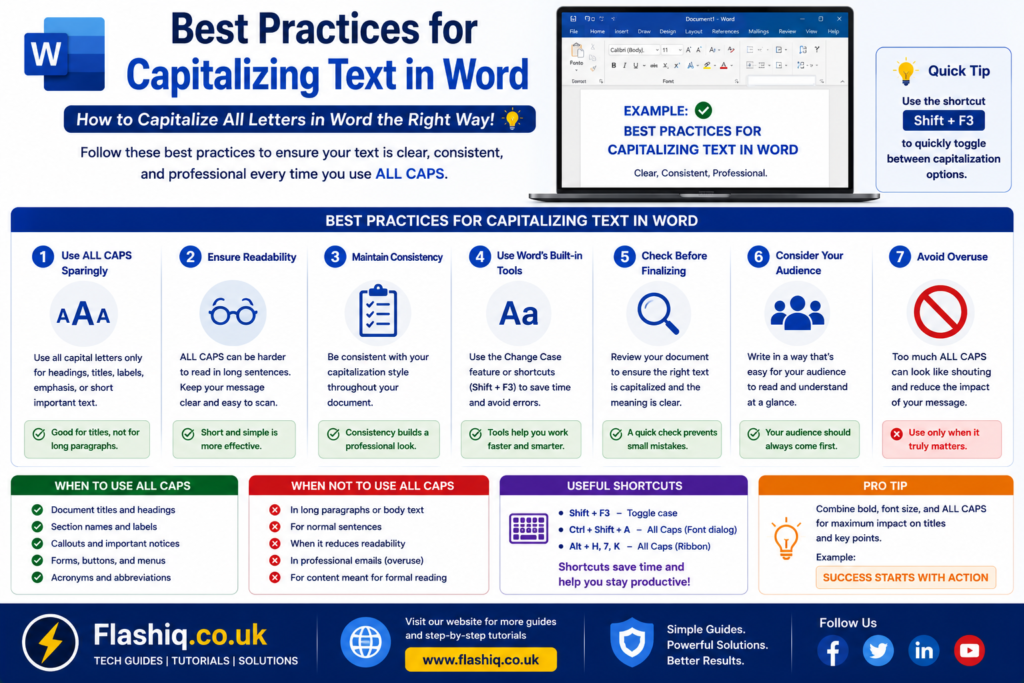
Proper capitalization improves both appearance and readability. Following a few simple practices ensures your documents remain professional and consistent.
- Use uppercase mainly for headings, titles, labels, and short emphasis.
- Review formatting after converting large blocks of text.
- Keep document styles consistent from beginning to end.
- Use built-in Word tools instead of manually retyping text.
- Learn keyboard shortcuts to improve editing efficiency.
- Save a backup copy before applying document-wide formatting.
- Follow any formatting guidelines required by your school or workplace.
- Combine capitalization with appropriate font sizes rather than relying only on uppercase for emphasis.
Common Mistakes to Avoid
Many users accidentally create formatting issues when changing text case. Avoiding these common mistakes will save editing time later.
Converting Everything to Uppercase
Entire documents written in uppercase are often harder to read. Reserve this style for situations where it is specifically required.
Forgetting to Select Text
The Change Case tool affects only selected text. If nothing is highlighted, Word cannot apply the formatting.
Ignoring Document Guidelines
Academic institutions and businesses often have formatting standards. Always verify whether uppercase is appropriate before making changes.
Using Uppercase for Every Heading
Not every heading needs to be fully capitalized. Title Case or Sentence case is often more readable depending on the document style.
Not Proofreading Afterwards
Even though capitalization changes only letter case, reviewing the final document ensures consistency and catches accidental formatting changes.
Pro Tips for Faster Editing
Experienced Microsoft Word users rely on small productivity tricks that significantly speed up document editing.
- Memorize Shift + F3 to quickly switch between capitalization styles.
- Press Ctrl + A before changing the case of an entire document.
- Use Word Styles to maintain consistent heading formatting.
- Review documents using Print Preview to confirm headings appear correctly.
- Keep Microsoft Word updated to access the latest formatting improvements.
- Practice common keyboard shortcuts to reduce reliance on the mouse.
- Save documents to OneDrive for automatic version history and recovery.
- Use the Navigation Pane when reviewing large documents after formatting changes.
Troubleshooting Capitalization Problems
Occasionally, capitalization tools may not work exactly as expected. If the Change Case button appears unavailable, first ensure that editable text is selected rather than images, text boxes with restrictions, or protected document sections. If Shift + F3 does not respond, verify your keyboard settings, especially on laptops where function keys control media features by default. Updating Microsoft Word can also resolve interface inconsistencies and feature availability issues. In shared documents, editing permissions may prevent formatting changes until access is granted. Restarting the application or reopening the document can often resolve temporary glitches. By checking these simple factors, most capitalization problems can be solved within minutes without reinstalling Microsoft Word.
Conclusion
Learning how to capitalize all letters in Word is a simple skill that can dramatically improve the speed and quality of your document editing. Whether you prefer using the Change Case button, the Shift + F3 keyboard shortcut, Microsoft Word for Mac, Word Online, or the mobile app, each method provides a quick way to transform lowercase text into uppercase without retyping. Understanding when to use uppercase—and when to avoid it—also helps create more readable and professional documents. By following the best practices, avoiding common mistakes, and using the productivity tips shared in this guide, you can edit documents with greater confidence and efficiency. As Microsoft Word continues to evolve, these core capitalization tools remain among its most useful formatting features for students, professionals, writers, and business users alike.
Frequently Asked Questions
1. How do I capitalize all letters in Word quickly?
Select your text, click Home > Change Case (Aa), and choose UPPERCASE. You can also use Shift + F3 on many systems.
2. Does Shift + F3 work in every version of Microsoft Word?
Most desktop versions support it, although some laptops require pressing the Fn key together with Shift + F3.
3. Can I capitalize an entire document at once?
Yes. Press Ctrl + A (or Command + A on Mac) to select the entire document, then apply UPPERCASE.
4. Is there a capitalization tool in Word Online?
Yes. Most versions of Word Online include Change Case functionality, although the interface may vary.
5. Can I change uppercase text back to lowercase?
Absolutely. Select the text and use the Change Case feature or Shift + F3 until lowercase appears.
6. Will changing capitalization affect fonts or formatting?
No. It changes only the letter case while preserving fonts, colors, spacing, and most other formatting.
7. Does Microsoft Word Mobile support uppercase conversion?
Many versions do, although available formatting options depend on the operating system and app version.
8. Why is the Change Case button grayed out?
This usually happens when no editable text is selected or the document is protected from editing.
9. Should I write long paragraphs in all uppercase?
Generally, no. Long uppercase paragraphs reduce readability. Uppercase works best for short headings, labels, and emphasis.
10. What is the fastest method for experienced users?
Most advanced users prefer the Shift + F3 shortcut because it changes capitalization instantly without opening menus.
Author Bio
About the Author
The author is an experienced SEO content writer and Microsoft Office specialist with extensive knowledge of document formatting, productivity software, and digital workflows. By creating practical, research-based tutorials that follow Google’s EEAT and Helpful Content guidelines, the author helps readers solve everyday technology problems through clear, accurate, and easy-to-follow instructions.