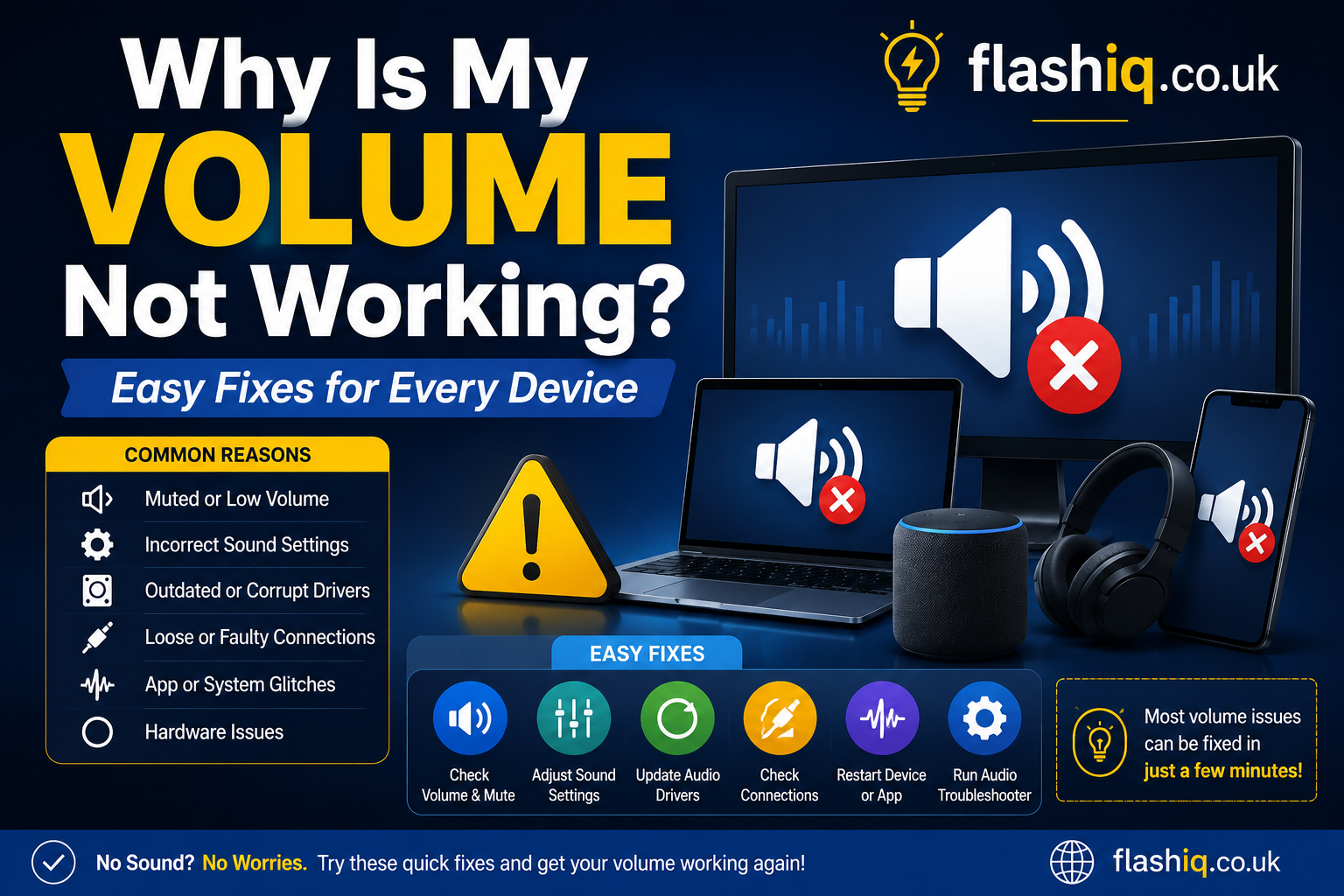
Why Is My Volume Not Working? Easy Fixes for Every Device
If you’ve ever asked yourself, why is my volume not working, you’re not alone. Audio issues are among the most common problems users face on computers, laptops, smartphones, and tablets. Whether you’re watching videos, attending an online meeting, playing games, or listening to music, losing sound can be frustrating.
The good news is that in most cases, the problem is easy to fix. If you’re wondering why is my volume not working, the cause could be as simple as muted speakers, outdated drivers, incorrect audio settings, damaged hardware, or software conflicts. Understanding these causes can help you solve the issue quickly without needing professional repair.
In this comprehensive guide, you’ll learn why is my volume not working, how to diagnose the issue step by step, and which troubleshooting methods work best for different devices. We’ll also compare some of the best software tools that can help detect and fix audio problems automatically.
Quick Summary
If you’re searching for why is my volume not working, here are the most common causes:
- Muted system volume
- Incorrect playback device
- Faulty speakers or headphones
- Outdated audio drivers
- Disabled audio services
- Windows or macOS updates
- Damaged audio ports
- Bluetooth connection problems
- Software conflicts
- Hardware failure
Most users can fix the issue within a few minutes by checking audio settings, updating drivers, or restarting audio services.
Why Is My Volume Not Working?
There isn’t a single answer to why is my volume not working because several factors can affect audio playback. The problem may be software-related, hardware-related, or simply a setting that changed accidentally.
Before trying advanced solutions, always start with the basics.
Common symptoms include:
- No sound from speakers
- Headphones produce no audio
- Volume icon works but no sound
- Videos play silently
- Audio cuts in and out
- Distorted sound
- Bluetooth audio not working
Common Reasons Why Your Volume Is Not Working
The Device Is Muted
The simplest explanation for why is my volume not working is that your device has been muted accidentally.
Things to check include:
- System volume
- Application volume
- Browser tab mute
- Keyboard mute key
- External speaker controls
Many laptops have dedicated mute keys that can easily be pressed by mistake.
Wrong Audio Output Device
Another common reason why is my volume not working is that your computer is sending sound to the wrong device.
For example:
- HDMI monitor
- Bluetooth speaker
- USB headset
- External sound card
- Wireless earbuds
Selecting the correct playback device often restores sound immediately.
Audio Drivers Are Outdated
Audio drivers allow Windows and other operating systems to communicate with your speakers.
If the drivers become corrupted or outdated, you may wonder why is my volume not working even though everything appears normal.
Signs include:
- Red X on speaker icon
- Crackling sound
- Missing playback devices
- No audio after Windows update
Updating drivers often solves these problems.
Windows Audio Service Has Stopped
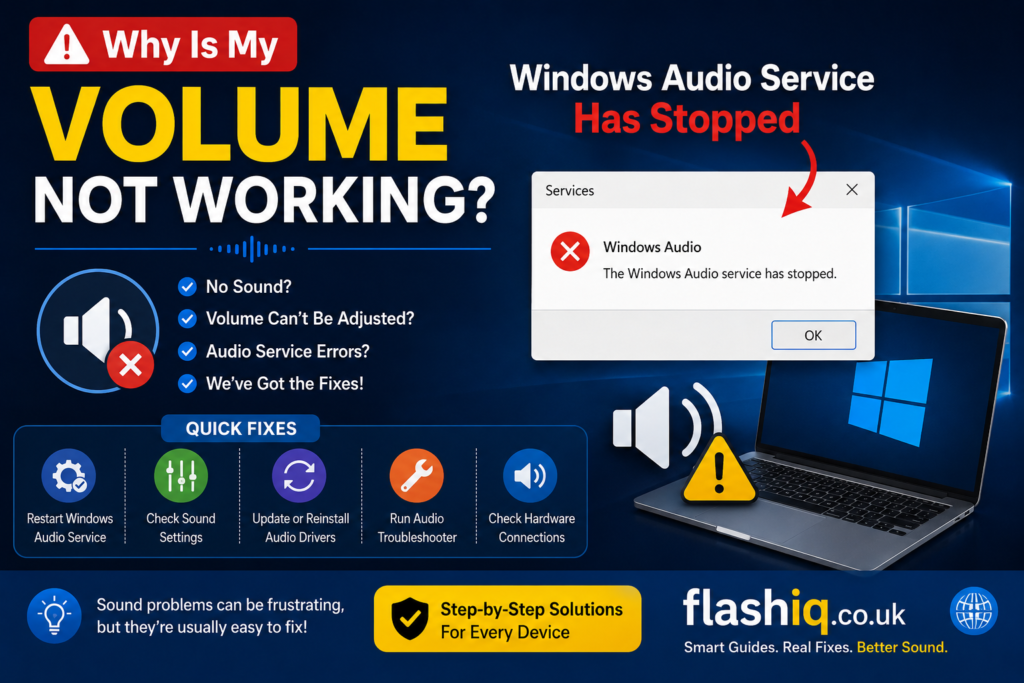
Windows relies on several background services for sound.
If these services stop unexpectedly, you’ll likely ask why is my volume not working because no application can produce audio.
Restarting the Windows Audio service usually fixes the issue.
Faulty Speakers or Headphones
Hardware problems can also explain why is my volume not working.
Possible hardware issues include:
- Broken speakers
- Damaged headphone cable
- Loose audio jack
- Faulty USB headset
- Bluetooth pairing issues
Testing another audio device can quickly determine whether hardware is the cause.
Basic Troubleshooting Steps
Restart Your Device
A restart refreshes system services and resolves temporary glitches.
Many users discover why is my volume not working was simply caused by a temporary software error.
Check Volume Mixer
Windows allows each application to have its own volume level.
Sometimes:
- Chrome is muted
- Zoom is muted
- Spotify volume is zero
- Discord is muted
Opening the Volume Mixer can quickly identify the problem.
Test Another Audio Device
Try:
- Different headphones
- External speakers
- Bluetooth earbuds
- HDMI monitor
- USB headset
This helps identify whether the issue is with the speakers or the computer.
Disconnect Bluetooth Devices
Sometimes your device automatically connects to a nearby Bluetooth speaker or earbuds.
If that happens, you’ll think why is my volume not working, while the audio is actually playing elsewhere.
Best Software to Help Fix Audio Problems
| Software | Best For | Platform | Free Version | Main Features |
|---|---|---|---|---|
| Driver Booster | Updating audio drivers | Windows | Yes | Automatic driver scanning, outdated driver detection, one-click updates |
| Driver Easy | Missing or corrupted drivers | Windows | Yes | Driver backup, restore, hardware detection, audio driver installation |
| Restoro | System repair | Windows | Limited | Repairs Windows files, fixes system errors affecting sound, stability improvements |
| Fortect | Audio-related system issues | Windows | Limited | Detects corrupted system files, repairs Windows components, improves performance |
| Windows Troubleshooter | Built-in diagnostics | Windows | Yes | Automatically detects common audio problems, resets services, basic repair tools |
| Software | Best For | Platform | Free Version | Main Features |
|---|---|---|---|---|
| Auslogics Driver Updater | Updating outdated audio drivers | Windows | Trial | Scans for missing or outdated drivers, automatic updates, backup and restore options |
| Snappy Driver Installer Origin (SDIO) | Offline driver installation | Windows | Yes | Open-source, offline driver packs, no installation required, supports bulk driver updates |
| Realtek Audio Console | Managing Realtek audio settings | Windows | Yes | Speaker configuration, microphone settings, audio enhancements, equalizer support |
| Dolby Access | Improving sound quality | Windows, Xbox | Limited | Dolby Atmos support, customizable audio profiles, immersive surround sound |
| NirSoft SoundVolumeView | Advanced volume management | Windows | Yes | Control individual device volumes, command-line support, save and restore audio settings |
Feature Comparison Table
| Feature | Driver Booster | Driver Easy | Restoro | Fortect | Windows Troubleshooter | Auslogics Driver Updater | SDIO | Realtek Audio Console | Dolby Access | SoundVolumeView |
|---|---|---|---|---|---|---|---|---|---|---|
| Driver Updates | ✔ | ✔ | ✖ | ✖ | ✖ | ✔ | ✔ | ✖ | ✖ | ✖ |
| Automatic Driver Scan | ✔ | ✔ | ✖ | ✖ | Limited | ✔ | ✔ | ✖ | ✖ | ✖ |
| System Repair | ✖ | ✖ | ✔ | ✔ | Limited | ✖ | ✖ | ✖ | ✖ | ✖ |
| Audio Diagnostics | Limited | Limited | ✔ | ✔ | ✔ | Limited | Limited | ✔ | ✔ | ✔ |
| Audio Enhancement | ✖ | ✖ | ✖ | ✖ | ✖ | ✖ | ✖ | ✔ | ✔ | Limited |
| Backup & Restore | ✔ | ✔ | ✖ | ✖ | ✖ | ✔ | ✔ | ✖ | ✖ | ✔ |
| Beginner Friendly | ✔ | ✔ | ✔ | ✔ | ✔ | ✔ | Moderate | ✔ | ✔ | Moderate |
Pricing Comparison Table
| Software | Free Plan | Paid Version | Best For |
|---|---|---|---|
| Driver Booster | Yes | Starts around $23.95/year | Automatic driver maintenance |
| Driver Easy | Yes | Starts around $29.95/year | Driver download and installation |
| Restoro | Limited | Starts around $39.95/year | Windows repair |
| Fortect | Limited | Starts around $33.95/year | System health and repairs |
| Windows Troubleshooter | Yes | Free | Built-in troubleshooting |
| Auslogics Driver Updater | Trial | Starts around $39.95/year | Driver management |
| Snappy Driver Installer Origin | Yes | Free | Offline driver installation |
| Realtek Audio Console | Yes | Free | Audio configuration |
| Dolby Access | Trial | One-time purchase (varies by region) | Dolby Atmos audio |
| SoundVolumeView | Yes | Free | Advanced audio controls |
How to Choose the Right Audio Troubleshooting Software
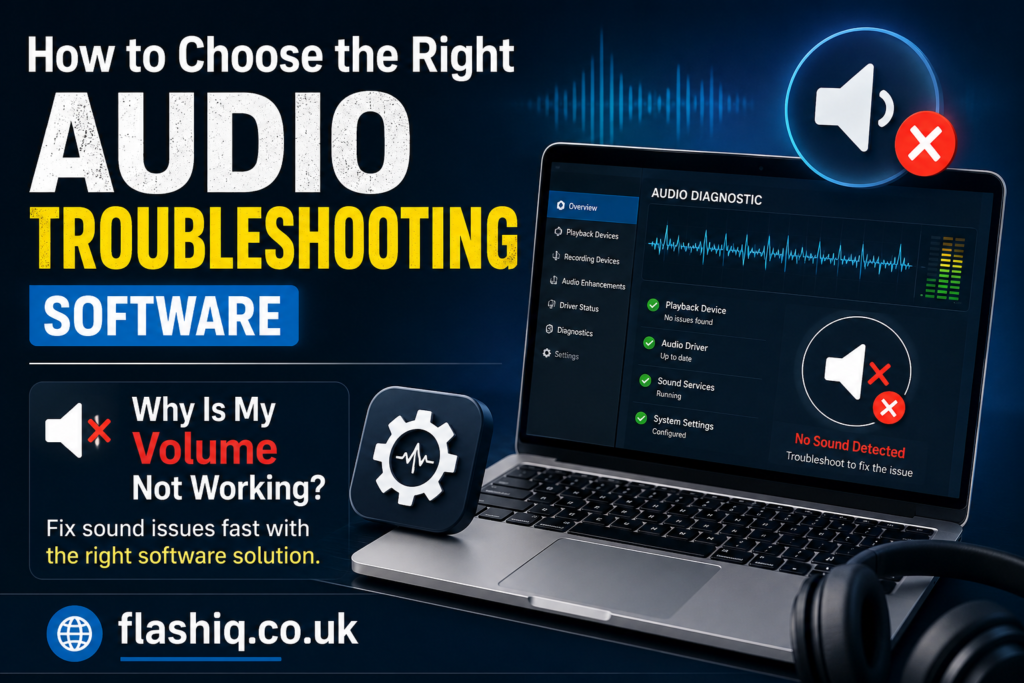
If you’re asking why is my volume not working, choosing the right software depends on the root cause of the problem.
Consider the following before downloading a tool:
- For outdated drivers: Choose Driver Booster, Driver Easy, Auslogics Driver Updater, or SDIO.
- For corrupted Windows files: Restoro or Fortect can repair damaged system components.
- For Realtek audio settings: Install or update Realtek Audio Console.
- For better sound quality: Dolby Access provides advanced audio enhancements.
- For advanced volume control: SoundVolumeView offers detailed management of playback devices and volume levels.
- For quick diagnostics: Start with the built-in Windows Troubleshooter since it’s free and already installed.
Always download software from the developer’s official website to ensure security and compatibility.
Our Recommendation
If you’re trying to determine why is my volume not working, begin with the simplest solutions before installing third-party software.
Recommended troubleshooting order:
- Check if the system or application volume is muted.
- Restart your device.
- Verify the correct playback device is selected.
- Run Windows Troubleshooter.
- Update audio drivers using Driver Booster or Driver Easy.
- Restart Windows Audio Services.
- Repair system files using Restoro or Fortect if the issue persists.
- Test another speaker or headset to rule out hardware failure.
Following these steps resolves most audio problems without requiring professional assistance.
Conclusion
If you’ve been wondering why is my volume not working, the answer often lies in a simple configuration issue, outdated driver, or temporary software glitch rather than a serious hardware failure. By checking your volume settings, verifying the correct playback device, updating drivers, and using reliable troubleshooting tools, you can usually restore sound in just a few minutes.
When basic fixes don’t work, dedicated repair software can help identify deeper issues with Windows components or corrupted drivers. Keeping your operating system and audio drivers updated also reduces the likelihood of future sound problems.
With the troubleshooting methods and software comparisons in this guide, you’ll be well-equipped to diagnose and fix most audio issues on your computer or mobile device.
Frequently Asked Questions (FAQs)
1. Why is my volume not working even though it isn’t muted?
The issue may be caused by an incorrect playback device, outdated audio drivers, disabled Windows Audio services, or hardware problems.
2. How do I restore sound on Windows?
Restart your PC, check the Volume Mixer, select the correct output device, run Windows Troubleshooter, and update your audio drivers.
3. Can Windows updates cause audio issues?
Yes. Occasionally, Windows updates replace or remove audio drivers, leading to sound problems until the correct drivers are reinstalled.
4. How do I know if my speakers are damaged?
Test your speakers with another device or connect a different headset to your computer. If only one device fails, the hardware may be faulty.
5. Which software is best for updating audio drivers?
Driver Booster and Driver Easy are among the most popular tools for scanning and updating audio drivers.
6. Why is my Bluetooth connected but there’s no sound?
Your computer may still be using another playback device. Open the sound settings and manually select your Bluetooth device as the default output.
7. Can corrupted system files affect audio?
Yes. Damaged Windows system files can interfere with audio services. Repair tools like Restoro or Fortect can help resolve such issues.
8. Should I reinstall audio drivers?
Yes. Reinstalling or updating audio drivers is one of the most effective fixes for persistent sound problems.
Quick Bio
FlashIQ is dedicated to creating practical technology guides that help users solve everyday computer, software, and digital troubleshooting challenges. Our tutorials focus on clear instructions, accurate comparisons, and easy-to-follow solutions, enabling readers to fix common tech issues quickly and confidently.