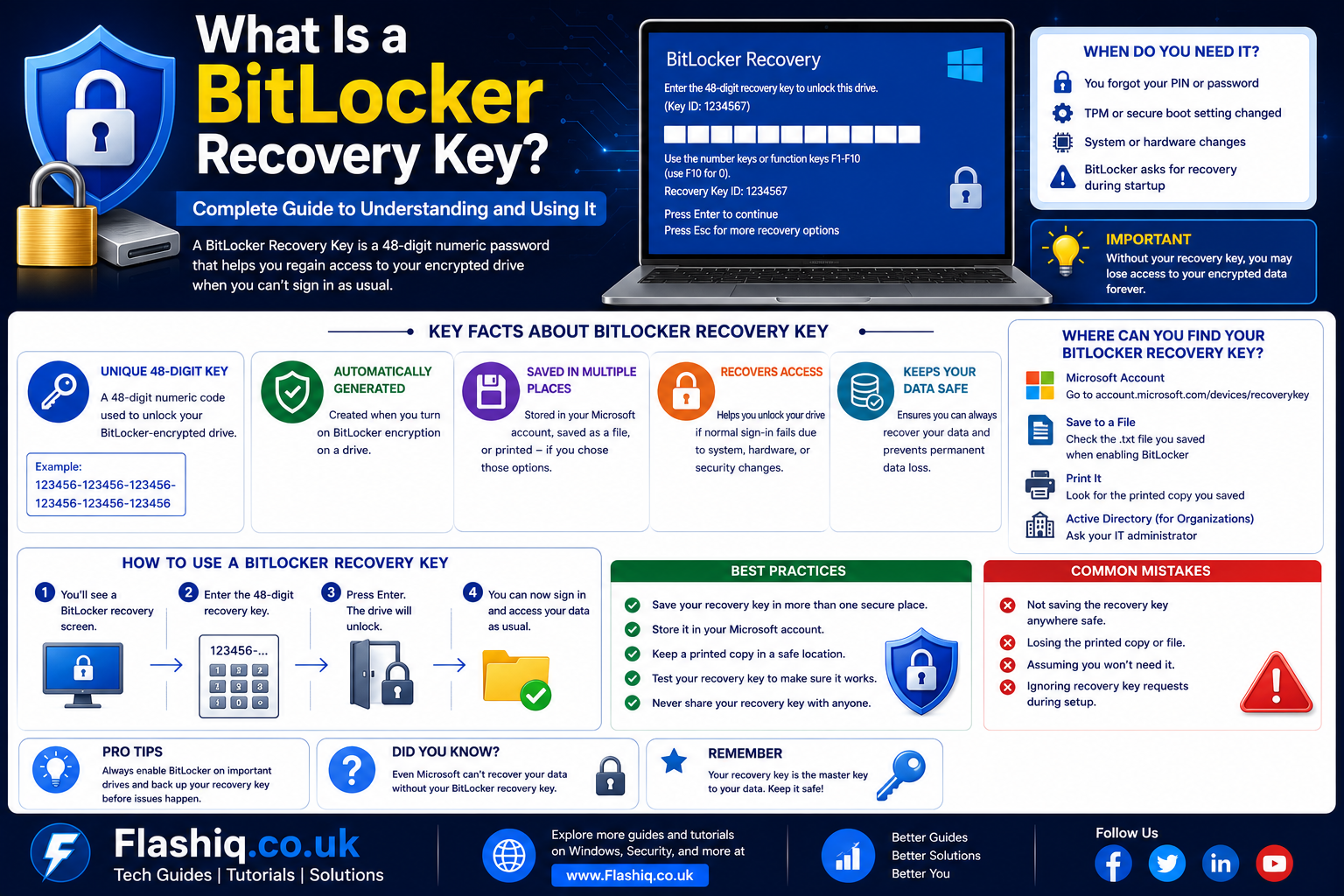
What Is a BitLocker Recovery Key? Complete Guide to Understanding and Using It
If you’ve ever turned on your computer only to see a screen asking for a BitLocker recovery key, you’re not alone. Many Windows users become concerned when they unexpectedly encounter this prompt, especially if they have never manually enabled drive encryption. Understanding what is a BitLocker recovery key can save you time, reduce stress, and help you regain access to your important files safely. BitLocker is one of Microsoft’s most trusted security technologies, designed to protect sensitive information by encrypting entire drives. While encryption significantly improves data security, it also requires a secure recovery method if Windows detects unusual changes or cannot verify your identity. That’s exactly where the recovery key becomes essential. Whether you’re using Windows 10, Windows 11, or a business-managed PC, knowing what is a BitLocker recovery key helps you prepare for unexpected situations before they happen. This guide explains everything in simple language, making it easy for beginners and advanced users alike to understand how BitLocker works.
Quick Answer
What is a BitLocker recovery key? A BitLocker recovery key is a unique 48-digit numerical password generated by Microsoft BitLocker when drive encryption is enabled. It serves as a backup method to unlock an encrypted drive if Windows cannot verify that the authorized user is accessing the device. You may need this key after hardware changes, BIOS updates, TPM issues, forgotten PINs, or suspected security risks. The recovery key can be stored in your Microsoft account, Active Directory, Azure AD, a USB drive, a printed copy, or another secure location. Without the correct recovery key, accessing encrypted data becomes extremely difficult because BitLocker is specifically designed to prevent unauthorized access.
What Is a BitLocker Recovery Key?
Understanding the Purpose of a BitLocker Recovery Key
To understand what is a BitLocker recovery key, it helps to first understand BitLocker itself. BitLocker is Microsoft’s built-in full disk encryption feature that protects your data from theft, unauthorized access, and offline attacks. When BitLocker encrypts a drive, every file stored on that drive is automatically protected using advanced encryption algorithms. However, Microsoft also understands that users may occasionally lose access due to hardware failures, firmware updates, or security verification issues. Instead of permanently locking users out of their own computers, BitLocker creates a unique recovery key during setup. This recovery key acts as a secure backup authentication method. Think of it as an emergency master key that only the legitimate owner should possess. Without understanding what is a BitLocker recovery key, many users mistakenly believe their computer has been hacked when Windows requests this code.
Why Microsoft Uses Recovery Keys
Microsoft designed BitLocker to balance strong security with practical recovery options. Encryption alone is not enough if legitimate users cannot regain access after unexpected system changes. The recovery key provides that safety net while maintaining a high level of protection against unauthorized access. If someone steals your laptop and removes the hard drive, BitLocker prevents them from reading your files. Likewise, if Windows detects suspicious modifications that could indicate tampering, it requires the recovery key before unlocking the drive. This process ensures that only someone with authorized access can continue using the encrypted device. Understanding what is a BitLocker recovery key also helps users appreciate why Microsoft emphasizes saving the key immediately after enabling encryption. Losing it can make recovering data extremely difficult.
How Does a BitLocker Recovery Key Work?
Authentication During Startup
When your computer starts, BitLocker normally unlocks the encrypted drive automatically using the Trusted Platform Module (TPM) or another configured authentication method. The TPM securely stores encryption-related information and verifies that the system has not been altered. If everything matches expected security conditions, Windows starts normally without asking for any additional information. However, if the TPM detects changes such as motherboard modifications, Secure Boot configuration updates, firmware changes, or repeated failed login attempts, BitLocker may require the recovery key instead. This additional verification step protects your encrypted information from potential attacks. Understanding what is a BitLocker recovery key means recognizing that it is not requested randomly but rather when Windows determines additional verification is necessary.
The 48-Digit Recovery Key
One characteristic that makes a BitLocker recovery key easy to recognize is its format. Instead of using letters, symbols, or complex passwords, Microsoft generates a unique 48-digit numerical code divided into groups for easier reading. Every encrypted drive receives its own individual recovery key, meaning different drives on the same computer can have separate keys. This unique identification helps ensure that only the correct recovery key can unlock the corresponding encrypted drive. When Windows requests the key, users simply enter the 48-digit number exactly as saved. Since each key is mathematically tied to the encrypted volume, guessing or generating one is practically impossible. That’s another reason why learning what is a BitLocker recovery key and storing it securely is so important.
Why You May Be Asked for a BitLocker Recovery Key
Hardware Changes
One of the most common reasons Windows requests a BitLocker recovery key is significant hardware modification. Replacing the motherboard, changing the TPM chip, installing a different processor, or modifying certain security components can trigger BitLocker protection. Since these changes could potentially indicate unauthorized access, Windows temporarily locks the encrypted drive until the recovery key is provided. Although these upgrades are often completely legitimate, BitLocker cannot automatically distinguish between authorized maintenance and malicious tampering. Therefore, it asks for the recovery key before granting access. Knowing what is a BitLocker recovery key allows users to prepare before performing major hardware upgrades.
BIOS and Firmware Updates
Updating your computer’s BIOS or UEFI firmware can also trigger BitLocker recovery mode. Firmware controls critical low-level hardware operations, and changes to these settings affect the system measurements stored inside the TPM. When BitLocker notices these differences, it assumes the device configuration has changed and requests additional verification. This security feature protects encrypted data against firmware-based attacks while ensuring only authorized users regain access. Before installing firmware updates, many IT professionals temporarily suspend BitLocker protection to avoid unnecessary recovery prompts. Understanding what is a BitLocker recovery key helps users safely manage firmware updates without unnecessary confusion.
Security Policy Changes
Organizations frequently enforce security policies through Microsoft Intune, Active Directory, or Azure Active Directory. Changes to these policies may cause BitLocker to request recovery verification. For example, modifications involving Secure Boot, TPM settings, startup authentication, or organizational security requirements may trigger recovery mode. Business users often encounter this after company-issued laptops receive new security configurations. Although the process may seem inconvenient, it significantly strengthens device protection. Knowing what is a BitLocker recovery key enables employees to understand why these requests occur instead of assuming their device has malfunctioned.
Where Is a BitLocker Recovery Key Stored?
Microsoft Account
For personal Windows devices, the most common storage location is the owner’s Microsoft account. During BitLocker setup, Windows usually offers to back up the recovery key automatically. This cloud backup provides convenient access if the computer later requests recovery authentication. Users simply sign in to the Microsoft account associated with the encrypted device and retrieve the matching recovery key. This approach combines convenience with security because the recovery key remains protected behind account authentication. Anyone researching what is a BitLocker recovery key should first check whether the key was automatically backed up online during encryption setup.
USB Flash Drive
Some users prefer storing their BitLocker recovery key on a USB flash drive. During encryption setup, Windows allows saving the recovery key as a text file that can later be inserted into the computer when needed. Keeping the USB in a secure physical location rather than leaving it connected to the encrypted computer is considered a best practice. If the computer becomes inaccessible, the USB copy provides an independent recovery option. However, users should also maintain additional backups because USB drives can become damaged or misplaced. Understanding what is a BitLocker recovery key includes recognizing the importance of multiple secure backup methods.
Printed Copy
Although digital storage is convenient, many security professionals still recommend printing the recovery key and storing the paper copy in a secure location such as a locked safe or fireproof document box. Printed copies cannot be affected by hard drive failures, accidental deletion, ransomware, or online account problems. Organizations handling highly sensitive information often maintain physical recovery records for disaster recovery planning. While paper storage requires careful protection from theft or loss, it remains one of the most reliable backup methods available. Knowing what is a BitLocker recovery key also means understanding that traditional offline storage continues to play an important role in cybersecurity.
Common Situations That Trigger BitLocker Recovery
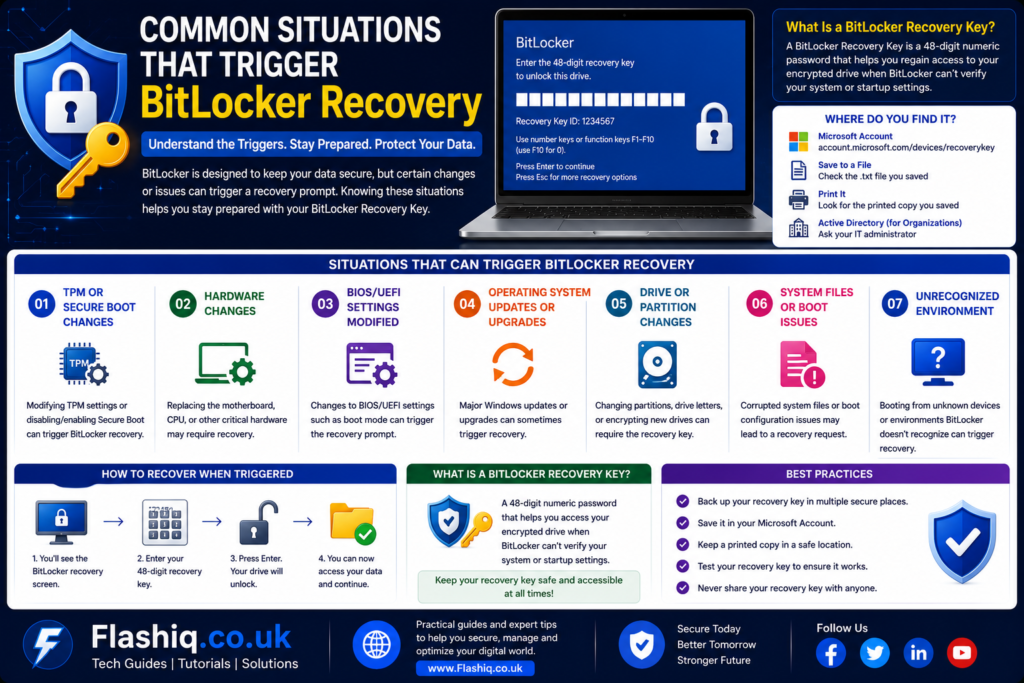
TPM Problems
The Trusted Platform Module plays a central role in BitLocker authentication. If Windows cannot communicate properly with the TPM because of hardware faults, firmware corruption, disabled TPM settings, or configuration mismatches, BitLocker may immediately enter recovery mode. This prevents potential attackers from bypassing hardware-based security protections. Although TPM-related issues are usually resolved through firmware settings or hardware diagnostics, access to encrypted data still requires the recovery key. Users who understand what is a BitLocker recovery key are far less likely to panic when TPM verification fails because they know the request is part of BitLocker’s normal security process.
Startup Configuration Changes
Changes to boot order, Secure Boot settings, partition layouts, boot managers, or operating system files may also cause BitLocker to request additional verification. Even legitimate maintenance activities performed by experienced users can alter startup measurements enough to activate recovery mode. Because BitLocker continuously checks whether the trusted boot environment remains unchanged, even small configuration differences may require manual authentication. This design protects encrypted data from advanced attacks targeting the startup process. Recognizing what is a BitLocker recovery key helps users understand that these recovery prompts are security features rather than software errors.
How to Find Your BitLocker Recovery Key
Check Your Microsoft Account
For most home users, the Microsoft account linked to the Windows device is the first place to search for the recovery key. During the BitLocker setup process, Windows often encourages users to save the recovery key online for safekeeping. If this option was selected, signing in to the same Microsoft account from another device allows you to view the recovery information. It is important to compare the Key ID displayed on the BitLocker recovery screen with the Key ID listed in your account because multiple recovery keys may exist for different devices. Matching the correct Key ID ensures you use the proper 48-digit recovery key. This cloud-based backup method is convenient because it remains accessible even if the encrypted computer cannot boot normally. Understanding what is a BitLocker recovery key also includes knowing where Microsoft stores it and how to identify the correct one. Always keep your Microsoft account protected with a strong password and multi-factor authentication to prevent unauthorized access to your recovery information.
Check Organizational Accounts
If your computer belongs to a business, school, or government organization, the recovery key is often managed by the IT department instead of the individual user. Many organizations automatically back up BitLocker recovery keys to Active Directory, Microsoft Entra ID, or other enterprise management systems. Employees should contact their IT administrator rather than attempting unsupported recovery methods. Administrators can verify device ownership and retrieve the appropriate recovery key securely. This centralized management simplifies device support while maintaining strict security standards. Organizations also benefit from consistent recovery procedures that reduce downtime when devices enter recovery mode. Learning what is a BitLocker recovery key helps business users understand why their employer may control access to recovery information. Following official IT procedures is always safer than attempting third-party recovery tools.
Search Your Saved Backups
Many users choose to save their BitLocker recovery key as a text file, print it, or store it in a password manager during the encryption setup process. If your Microsoft account does not contain the recovery key, carefully check external hard drives, encrypted USB flash drives, secure cloud storage, and document folders where important system information is typically stored. Search for filenames containing terms such as “BitLocker Recovery Key” or “RecoveryKey.” If you printed the recovery key, inspect secure filing cabinets, home safes, or document organizers where important records are kept. Never assume the key is lost until every backup location has been checked thoroughly. Because what is a BitLocker recovery key is closely tied to protecting valuable information, many users intentionally store multiple backup copies. Developing a habit of organized record-keeping greatly improves the chances of successful recovery.
What Happens If You Lose Your BitLocker Recovery Key?
Data Recovery Limitations
One of the most important facts about BitLocker is that its encryption is intentionally designed to resist unauthorized access. If every copy of the recovery key has been lost and no alternative authentication method is available, recovering the encrypted data may not be possible. This strong protection is exactly what makes BitLocker an effective security solution against data theft. Microsoft does not maintain a master recovery key capable of unlocking encrypted drives for individual users. Likewise, legitimate security researchers cannot bypass properly implemented BitLocker encryption without the required credentials. Understanding what is a BitLocker recovery key helps users appreciate why safeguarding the key is just as important as protecting the data itself. Preventive planning is always easier than attempting recovery after the key has disappeared. For this reason, experts strongly recommend creating multiple secure backups before enabling drive encryption.
Options Available to Users
Although losing the recovery key is a serious situation, users should first verify every possible storage location before assuming it is permanently gone. Check Microsoft accounts, organizational IT departments, printed records, password managers, USB devices, and secure cloud storage. If none of these options contain the key, reinstalling Windows and formatting the encrypted drive may become the only practical solution, although this permanently removes existing data. This outcome demonstrates why backup planning is essential when using full disk encryption. Businesses often avoid this problem through centralized recovery key management and documented security procedures. Individuals can achieve similar protection by maintaining redundant backups in multiple secure locations. Knowing what is a BitLocker recovery key reinforces the importance of treating it as a critical component of your overall data protection strategy.
BitLocker Recovery Key vs. BitLocker Password
Many users mistakenly believe that the BitLocker password and the BitLocker recovery key serve the same purpose, but they perform different roles within the encryption system. A startup password or PIN is used during normal authentication when the device is functioning as expected. The recovery key, on the other hand, is an emergency authentication method used only when BitLocker detects unusual conditions or cannot verify trusted startup information. While the password is selected or configured by the user or administrator, the recovery key is automatically generated by BitLocker during encryption setup. Both contribute to protecting encrypted data, but they are not interchangeable. Understanding what is a BitLocker recovery key becomes much easier when comparing it directly with standard authentication methods. The table below highlights their primary differences.
| Feature | BitLocker Recovery Key | BitLocker Password/PIN |
|---|---|---|
| Purpose | Emergency recovery | Normal authentication |
| Format | 48-digit numerical code | User-created password or PIN |
| Generated By | Windows BitLocker | User or administrator |
| Usage Frequency | Only during recovery events | Regular device startup |
| Can Be Changed | New key generated when appropriate | Can be updated by the user |
| Primary Function | Restore access to encrypted drive | Verify authorized user |
Best Practices for Managing a BitLocker Recovery Key
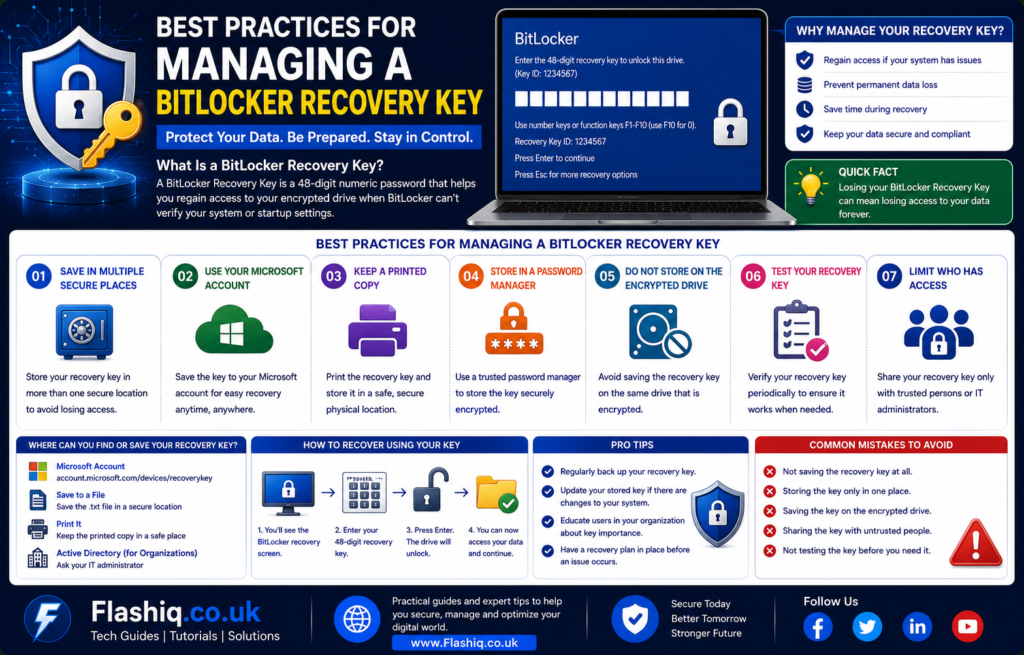
Proper management of recovery information greatly reduces the risk of permanent data loss. Security professionals recommend creating multiple backups immediately after enabling BitLocker instead of relying on a single storage method. Save the recovery key in your Microsoft account, maintain an encrypted digital backup, and store a printed copy in a secure location such as a safe. Avoid keeping the only copy of the recovery key on the same computer that is protected by BitLocker because it may become inaccessible during recovery. Review your recovery information periodically to confirm it remains available and readable. If organizational policies change, verify that enterprise backups remain current. Understanding what is a BitLocker recovery key also means recognizing that proper preparation is a fundamental part of effective cybersecurity. Careful planning today can prevent major problems in the future.
Security Best Practices
- Store multiple secure copies of the recovery key.
- Protect your Microsoft account with multi-factor authentication.
- Keep printed copies in a secure, fire-resistant location.
- Update recovery records after major hardware changes.
- Never share your recovery key with untrusted individuals.
- Verify backup locations periodically.
- Suspend BitLocker before approved firmware updates when appropriate.
- Maintain regular backups of important personal files.
Common Mistakes to Avoid
Even experienced Windows users occasionally make mistakes when managing encrypted devices. One common error is assuming the recovery key will never be needed because the computer has always started normally. Others save the recovery key only on the encrypted drive itself, making it inaccessible during recovery events. Some users accidentally delete printed or digital backups during system cleanup without realizing their importance. Another frequent mistake involves ignoring Key IDs and entering the wrong recovery key when multiple encrypted devices exist. Users also postpone creating backups until after encountering recovery mode, which is often too late. Failing to protect Microsoft accounts with strong security measures creates another unnecessary risk. Understanding what is a BitLocker recovery key encourages better preparation and reduces these avoidable mistakes. Consistent backup management remains the most effective preventive measure.
Pro Tips for BitLocker Users
Improve Long-Term Recovery Readiness
Professionals responsible for managing encrypted devices often develop documented recovery procedures rather than relying on memory alone. Create a checklist describing where each recovery key is stored, when backups were last verified, and who has authorized access. If you manage several Windows devices, label recovery records clearly using device names and Key IDs to avoid confusion during emergencies. Consider using a reputable password manager that supports secure document storage for recovery information. Schedule periodic reviews to confirm backup copies remain accessible after account changes or hardware upgrades. Keep important operating system updates current because they frequently include security improvements for encryption-related components. Knowing what is a BitLocker recovery key is only the beginning; maintaining organized recovery practices significantly improves long-term data protection. Small preventive habits often make the greatest difference when unexpected recovery situations occur.
Conclusion
Understanding what is a BitLocker recovery key is essential for anyone using Windows drive encryption. This unique 48-digit code acts as a trusted recovery mechanism whenever BitLocker cannot verify the security of an encrypted device. Whether recovery is triggered by hardware upgrades, firmware changes, TPM issues, or security policy updates, having access to the correct recovery key allows authorized users to regain access safely. At the same time, BitLocker’s strong encryption prevents unauthorized individuals from accessing sensitive information without proper authentication. The most effective strategy is to prepare before problems occur by storing multiple secure backups of your recovery key and regularly verifying that those backups remain available. Combined with strong account security, routine data backups, and responsible device management, BitLocker provides an excellent balance between usability and robust protection. By fully understanding what is a BitLocker recovery key, users can confidently benefit from enterprise-grade encryption while minimizing the risk of unexpected data loss.
Frequently Asked Questions
1. What is a BitLocker recovery key used for?
A BitLocker recovery key is used to unlock an encrypted drive when Windows cannot verify that the device is being accessed under trusted conditions.
2. How many digits are in a BitLocker recovery key?
A standard BitLocker recovery key contains 48 numerical digits grouped into sections for easier entry.
3. Can I recover my files without the BitLocker recovery key?
In most cases, no. Properly implemented BitLocker encryption is designed to prevent access without valid recovery credentials.
4. Where is my BitLocker recovery key usually stored?
It may be stored in your Microsoft account, your organization’s directory service, a USB drive, a printed document, or another secure backup location.
5. Why did my computer suddenly ask for the recovery key?
Hardware modifications, BIOS updates, TPM issues, Secure Boot changes, or other security-related events can trigger BitLocker recovery mode.
6. Is the BitLocker recovery key the same as my Windows password?
No. Your Windows password authenticates your user account, while the BitLocker recovery key is an emergency mechanism for unlocking an encrypted drive.
7. Can I create a new BitLocker recovery key?
Yes. Windows can generate a new recovery key when BitLocker protection is updated or reconfigured.
8. Is BitLocker available on all versions of Windows?
BitLocker is available on supported editions such as Windows Pro, Enterprise, and Education, while availability may vary by Windows version.
9. Should I save more than one copy of my recovery key?
Yes. Maintaining multiple secure backup copies significantly reduces the risk of permanent data loss.
10. Is BitLocker secure enough for personal and business use?
Yes. When configured correctly and managed responsibly, BitLocker provides strong full disk encryption trusted by individuals, businesses, and organizations worldwide.
Author Bio
About the Author
The author is an experienced technology and cybersecurity writer specializing in Windows security, encryption, cloud computing, and IT best practices. With a focus on creating accurate, easy-to-understand content aligned with Google’s EEAT and Helpful Content guidelines, the author helps readers confidently solve technical problems while improving their knowledge of modern digital security.