
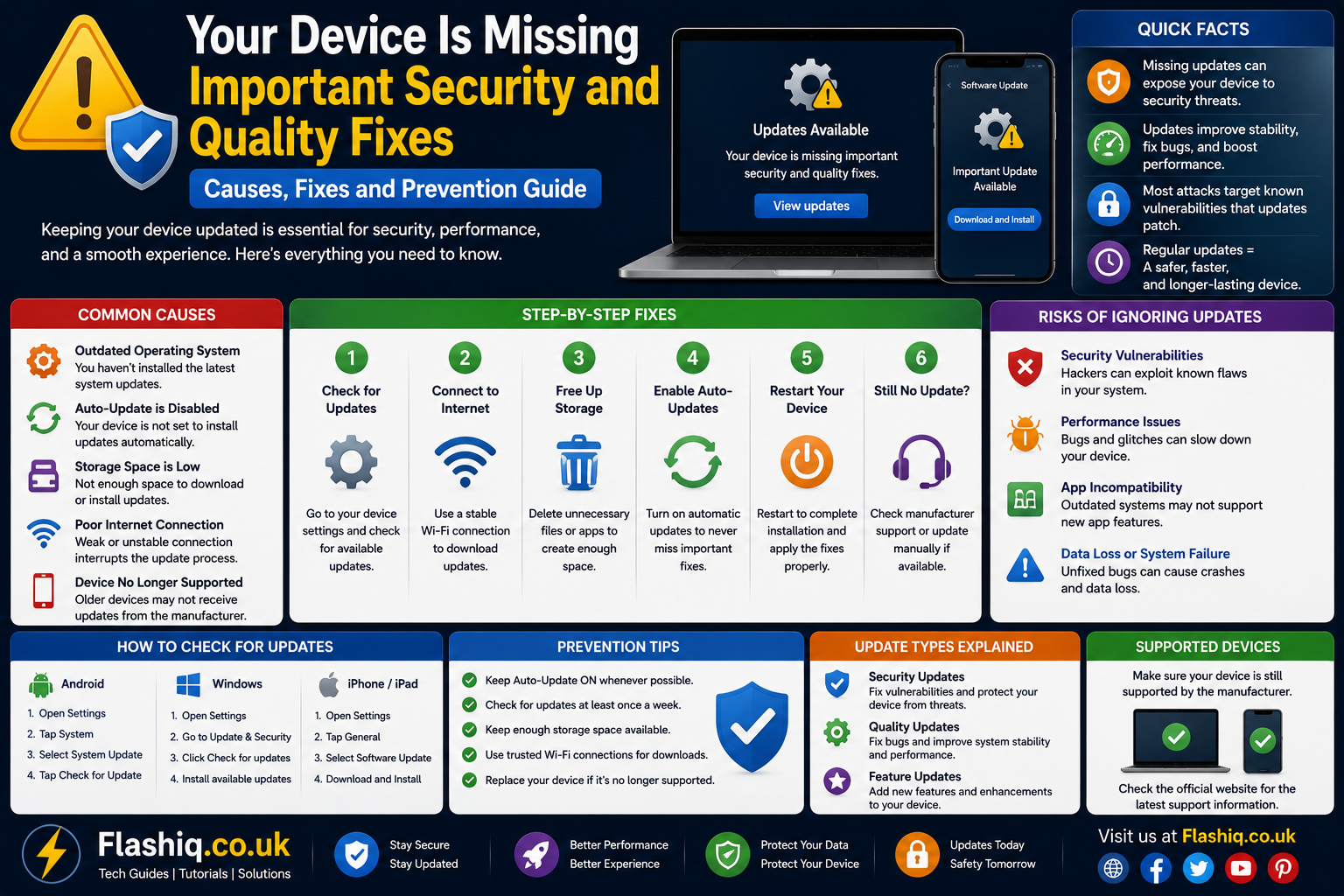
Your Device Is Missing Important Security and Quality Fixes Causes Fixes and Prevention Guide
If you’ve opened Windows Update and encountered the message your device is missing important security and quality fixes, you’re not alone. This warning is one of the most common Windows Update issues reported by users of Windows 10 and Windows 11. At first glance, the message may seem alarming because it suggests that your computer lacks essential updates designed to keep your system secure and stable. Fortunately, in most cases, the problem is repairable without reinstalling Windows or losing your personal files.
Understanding why your device is missing important security and quality fixes appears is the first step toward resolving it. Microsoft regularly releases cumulative updates, security patches, driver improvements, and quality updates that protect Windows against vulnerabilities and improve performance. When Windows Update cannot install these patches correctly, your system displays this notification. The underlying cause may range from corrupted update components and damaged system files to interrupted downloads, incompatible software, or outdated services. Throughout this guide, you’ll learn what the message really means, why it happens, and the safest ways to begin fixing it.
Quick Answer
If Windows displays your device is missing important security and quality fixes, it usually means your computer has failed to install one or more important Windows updates. The issue can often be resolved by restarting Windows Update services, running the Windows Update Troubleshooter, repairing corrupted system files using SFC and DISM, checking storage space, and manually installing pending updates. Keeping Windows fully updated ensures your computer remains protected against security threats while maintaining optimal performance and compatibility.
What Does “Your Device Is Missing Important Security and Quality Fixes” Mean?
The message your device is missing important security and quality fixes is generated by Windows Update whenever your operating system detects that required updates have not been successfully installed. These updates are more than simple feature improvements. Microsoft categorizes them into security updates, cumulative updates, servicing stack updates, quality improvements, and reliability patches that collectively protect your device against newly discovered vulnerabilities. Missing these updates can expose your computer to malware, ransomware, and compatibility problems with modern applications. Windows continually checks whether your system matches Microsoft’s latest supported build, and when discrepancies are found, the warning appears in Windows Update settings.
Many users mistakenly believe this notification means their computer has been infected by malware. In reality, the message typically indicates an update management problem rather than a security breach. Your PC may simply have failed to complete an update because of an interrupted download, corrupted cache, unstable internet connection, or damaged Windows components. Sometimes antivirus software, third-party optimization tools, or manually disabled Windows services interfere with the update process. Understanding this distinction helps users troubleshoot the problem logically instead of assuming the worst. Addressing your device is missing important security and quality fixes promptly reduces the risk of future update failures and keeps Windows operating smoothly.
Why Security and Quality Updates Matter
Security Updates Protect Your Computer
Security updates are Microsoft’s first line of defense against emerging cyber threats. Every month, researchers identify vulnerabilities affecting Windows, browsers, networking components, and system services. Microsoft packages fixes for these vulnerabilities into security updates distributed through Windows Update. If your device is missing important security and quality fixes, your PC may remain exposed to exploits that attackers actively target. Installing updates closes these security gaps before they can be abused by malicious software or hackers. Regular patching significantly reduces the likelihood of ransomware infections, unauthorized access, and data theft.
Beyond cybersecurity, security updates also strengthen authentication mechanisms, improve encryption standards, and enhance Windows Defender’s ability to detect modern threats. Even if your computer appears to work normally, outdated security components may silently increase your risk. Businesses, educational institutions, and home users alike depend on timely updates to maintain compliance and protect sensitive information. Ignoring repeated warnings about your device is missing important security and quality fixes may eventually result in unsupported software versions and increased security exposure. Consistent updating remains one of the simplest yet most effective cybersecurity practices.
Quality Updates Improve Stability
Quality updates focus on fixing bugs, improving performance, enhancing reliability, and resolving compatibility issues across Windows components. Unlike major feature updates that introduce new functionality, quality updates refine the operating system by correcting known issues reported by users worldwide. If your device is missing important security and quality fixes, your computer might continue experiencing crashes, application errors, blue screen problems, or driver conflicts that Microsoft has already addressed. Installing quality updates often resolves these persistent issues without requiring additional troubleshooting.
Quality updates also improve battery efficiency, networking reliability, Bluetooth connectivity, printer compatibility, and storage optimization. Microsoft continuously collects diagnostic information from millions of devices to identify common bugs and release targeted fixes. As Windows evolves, software developers expect users to have recent quality updates installed. Missing these updates may lead to compatibility issues with newly released applications or hardware devices. Maintaining current quality updates ensures your operating system remains dependable and performs as intended across everyday computing tasks.
Common Causes of This Windows Update Error
Corrupted Windows Update Components
One of the leading reasons your device is missing important security and quality fixes appears is corruption within Windows Update components. Windows temporarily stores downloaded updates before installation. If these cached files become damaged due to unexpected shutdowns, interrupted downloads, or disk errors, Windows Update may repeatedly fail. Instead of installing new patches successfully, the system continues detecting missing updates, creating a frustrating update loop. Corrupted update databases also prevent Windows from accurately tracking installed patches, leading to repeated error messages.
Corruption can occur after power failures, forced shutdowns, malware infections, or incomplete installations. Over time, update cache folders may accumulate invalid files that interfere with future downloads. Fortunately, Windows provides built-in methods for resetting update components and rebuilding the update database. Understanding that the issue often stems from damaged update files rather than broken hardware helps narrow troubleshooting efforts. Repairing Windows Update components is one of the most effective first steps when resolving your device is missing important security and quality fixes.
Damaged System Files
Windows depends on thousands of protected system files that work together to install updates correctly. If even a few essential files become corrupted, Windows Update may fail to verify packages or complete installations successfully. File corruption can result from failing storage devices, malware, abrupt shutdowns, software conflicts, or hardware instability. Once critical files are damaged, Windows begins displaying messages like your device is missing important security and quality fixes, even though the downloaded updates themselves are valid.
Microsoft includes powerful repair utilities such as System File Checker (SFC) and Deployment Image Servicing and Management (DISM) specifically for these situations. These tools compare installed files against trusted system copies and replace damaged components automatically. Repairing system integrity often restores Windows Update functionality without requiring a complete operating system reinstall. Because damaged system files affect numerous Windows features beyond updates, addressing corruption early improves overall system reliability and performance.
Disabled Windows Update Services
Several background services work continuously to download, verify, and install Windows updates. If one or more of these services become disabled manually or through third-party optimization software, Windows cannot complete its update process. As a result, your device is missing important security and quality fixes continues appearing despite repeated update attempts. Services such as Windows Update, Background Intelligent Transfer Service (BITS), Cryptographic Services, and Windows Installer are especially critical to successful patch management.
Users sometimes disable update services to improve performance or prevent automatic updates, not realizing the long-term consequences. Registry cleaners, privacy utilities, and system tweaking applications may also modify service settings without clearly informing users. Once these essential services stop functioning correctly, Windows Update loses its ability to communicate with Microsoft’s update servers. Restoring default service configurations typically resolves many update-related issues and allows pending security patches to install successfully.
Signs That Your Computer Needs Immediate Attention

Repeated Windows Update Failures
A clear indication that something is wrong occurs when Windows repeatedly downloads the same updates but never installs them successfully. The installation may stop at a certain percentage, restart unexpectedly, or roll back changes after rebooting. These symptoms often accompany your device is missing important security and quality fixes, indicating Windows cannot complete its update cycle. Ignoring repeated failures allows missing security patches to accumulate over time, increasing both security and stability risks.
Repeated update failures may also trigger additional Windows Update error codes that point toward underlying issues with storage, networking, corrupted components, or system services. Each unsuccessful attempt consumes bandwidth and processing resources while preventing your computer from receiving important improvements. Recognizing this pattern early helps prevent more complex problems from developing. Addressing update failures promptly improves system health and reduces future troubleshooting effort.
Unexpected Performance Problems
Although many users associate the warning solely with Windows Update, missing updates can indirectly affect overall computer performance. Systems displaying your device is missing important security and quality fixes may experience slower startup times, application crashes, driver instability, reduced responsiveness, or compatibility issues with newer software. These symptoms do not always appear immediately but often become more noticeable as additional updates accumulate over time.
Performance degradation can also result from outdated drivers, unresolved operating system bugs, and incomplete servicing stack updates. Windows components are designed to work together, so missing critical patches may create inconsistencies across different system modules. Users may notice Bluetooth disconnecting unexpectedly, printers failing to respond, network interruptions, or security software behaving unpredictably. Identifying these warning signs early allows users to begin repairing Windows Update before larger system issues develop.
Step-by-Step Solutions to Fix “Your Device Is Missing Important Security and Quality Fixes”
If you continue seeing your device is missing important security and quality fixes, the good news is that Windows includes several built-in recovery tools that can resolve the issue without requiring a complete reinstall. The best approach is to start with the simplest solutions before moving on to advanced troubleshooting. This method reduces the risk of making unnecessary system changes while identifying the actual cause of the update failure. Each solution targets a different part of the Windows Update process, including services, system files, update components, and network connectivity. In many cases, one repair step is enough to restore normal update functionality. If the problem persists after one method, continue to the next until Windows successfully installs all pending updates. Keeping a backup of important files before making significant system changes is always recommended, even though these methods are considered safe. Following Microsoft’s recommended troubleshooting sequence gives you the highest chance of permanently resolving your device is missing important security and quality fixes.
Run the Windows Update Troubleshooter
The Windows Update Troubleshooter is one of the easiest ways to diagnose common update problems. It automatically checks for incorrect settings, damaged update components, disabled services, and other configuration issues that prevent Windows from installing updates. When the troubleshooter detects a problem, it attempts to repair it without requiring manual intervention. After completing the scan, restart your computer and check Windows Update again to determine whether your device is missing important security and quality fixes has disappeared. Although the troubleshooter cannot repair every issue, it successfully resolves many common update failures experienced by everyday users. Running this utility first also provides valuable diagnostic information if additional troubleshooting becomes necessary. It is a low-risk solution that should always be attempted before modifying advanced system settings. Many update errors are resolved within minutes using this built-in tool alone.
Restart Windows Update Services
Windows Update depends on several background services that work together to download and install updates. If any of these services stop unexpectedly or become misconfigured, Windows cannot complete the update process successfully. Restarting services such as Windows Update, Background Intelligent Transfer Service (BITS), Cryptographic Services, and Windows Installer often restores normal operation. Once these services are running correctly, Windows can reconnect to Microsoft’s update servers and continue downloading missing patches. Users who have previously disabled automatic updates may find that enabling these services immediately resolves your device is missing important security and quality fixes. Restarting services also clears temporary communication issues between Windows components. This repair method requires only a few minutes but can resolve problems that persist through multiple reboots. After restarting the services, always check for updates again to verify the repair.
Repair Corrupted System Files Using SFC and DISM
System file corruption remains one of the most common reasons Windows Update fails repeatedly. Microsoft’s System File Checker (SFC) scans protected operating system files and automatically replaces damaged versions with healthy copies stored locally. If SFC cannot repair every issue, the Deployment Image Servicing and Management (DISM) tool downloads fresh Windows components directly from Microsoft’s servers when available. Running these utilities restores critical system files responsible for update installation and servicing. Once repairs are complete, restart your computer before checking Windows Update again. Many users discover that your device is missing important security and quality fixes disappears immediately after corrupted files are repaired. These tools also improve overall system stability by correcting hidden operating system inconsistencies. Because both utilities are officially supported by Microsoft, they are among the safest advanced troubleshooting options available.
Reset Windows Update Components
When update cache files become corrupted, Windows may repeatedly attempt to install the same failed updates. Resetting Windows Update components clears damaged cache files, rebuilds update databases, and forces Windows to create fresh download folders. This process removes outdated temporary files while preserving your personal documents and installed applications. After resetting the components, Windows performs a clean synchronization with Microsoft’s update servers and downloads fresh copies of required updates. If corrupted update databases caused your device is missing important security and quality fixes, resetting the components often provides a permanent solution. Although the process is slightly more advanced than using the troubleshooter, Microsoft commonly recommends it for persistent update failures. Users experiencing repeated installation loops frequently see immediate improvement after performing this repair. Completing this step carefully ensures Windows Update starts with a clean working environment.
Advanced Troubleshooting Methods
Install Updates Manually
When automatic updates continue failing despite multiple repair attempts, manually downloading updates from the Microsoft Update Catalog can bypass Windows Update entirely. This method allows users to search for the exact cumulative update associated with their Windows version and install it independently. Manual installation is particularly useful when only one specific update continues failing while others install normally. After installing the required patch, Windows Update often resumes functioning correctly without additional repairs. Users experiencing your device is missing important security and quality fixes due to one problematic update frequently resolve the issue using this approach. Manual installation also helps determine whether the problem lies with Windows Update itself or with the update package. Although it requires identifying the correct update number, the process is straightforward when performed carefully. Always download updates only from Microsoft’s official catalog to ensure authenticity and security.
Perform a Clean Boot
Software conflicts can silently interfere with Windows Update by blocking services, modifying system files, or preventing update installation. Performing a Clean Boot starts Windows using only essential Microsoft services while temporarily disabling third-party applications. This controlled environment helps determine whether antivirus software, optimization tools, VPN applications, or startup programs are causing your device is missing important security and quality fixes. If updates install successfully during a Clean Boot, you can gradually re-enable services until the conflicting application is identified. This troubleshooting technique is widely used by Microsoft support professionals because it isolates software-related problems efficiently. Clean Boot does not remove applications or personal files, making it a safe diagnostic procedure. Once the conflicting software is identified, updating or uninstalling it typically resolves the issue permanently. Maintaining a minimal startup environment also improves long-term system performance.
Check Disk Health and Storage Space
Windows requires adequate free storage space to download, unpack, and install cumulative updates successfully. Insufficient storage may interrupt installations midway, leaving Windows displaying your device is missing important security and quality fixes. Additionally, failing hard drives or SSDs containing bad sectors can corrupt downloaded update files before installation completes. Running Windows disk checking utilities helps identify storage-related problems that affect update reliability. Removing unnecessary temporary files and ensuring sufficient free disk space improves update success rates significantly. Modern Windows updates can require several gigabytes of temporary storage during installation. Monitoring drive health also helps detect hardware issues before they cause permanent data loss. Healthy storage devices are essential for maintaining reliable Windows Update functionality.
Comparison of Common Fix Methods
| Solution | Difficulty | Best For | Success Rate |
|---|---|---|---|
| Windows Update Troubleshooter | Easy | Basic update errors | High |
| Restart Update Services | Easy | Disabled services | High |
| SFC Scan | Easy | Corrupted system files | High |
| DISM Repair | Medium | Windows image corruption | Very High |
| Reset Update Components | Medium | Damaged update cache | Very High |
| Manual Update Installation | Medium | Single failed updates | High |
| Clean Boot | Medium | Software conflicts | High |
| Check Disk & Storage | Easy | Storage-related issues | Moderate to High |
How to Prevent This Error in the Future

Preventing your device is missing important security and quality fixes is much easier than repeatedly troubleshooting Windows Update failures. Regular maintenance keeps Windows healthy and minimizes the chance of corrupted update files. Avoid forcing shutdowns while updates are installing because interrupted installations frequently damage update components. Keep enough free storage space available for future cumulative updates and feature releases. Install updates regularly instead of postponing them for extended periods, as missing multiple update cycles can complicate future installations. Use trusted antivirus software without disabling essential Windows services. Periodically scan your system for corrupted files using Microsoft’s built-in repair utilities. Consistent maintenance helps Windows remain secure, reliable, and fully supported.
Best Practices
- Enable automatic Windows Updates whenever possible.
- Install monthly security updates without unnecessary delays.
- Maintain at least 20 GB of free storage on the system drive.
- Restart your computer regularly after updates are installed.
- Use only trusted system optimization tools.
- Keep device drivers updated through reliable sources.
- Create periodic system restore points before major updates.
- Back up important files before performing advanced repairs.
- Scan periodically with SFC and DISM if update issues appear.
- Monitor Windows Update history for repeated failures.
Common Mistakes
- Ignoring the your device is missing important security and quality fixes warning for months.
- Disabling Windows Update services permanently.
- Interrupting updates by forcing a shutdown.
- Using unofficial websites to download Windows updates.
- Deleting important system folders without understanding their purpose.
- Running multiple registry cleaners simultaneously.
- Ignoring low disk space warnings.
- Assuming antivirus software is always responsible.
- Installing incompatible drivers from unknown sources.
- Skipping restarts after successful updates.
Pro Tips
Keep Windows Fully Patched
Installing updates shortly after Microsoft releases them reduces the likelihood of cumulative update conflicts. Smaller update gaps generally produce smoother installations and fewer repair requirements.
Monitor Update History
Review Windows Update history regularly to identify repeated failures before they become larger system problems. Early detection makes troubleshooting significantly easier.
Create Restore Points
Before performing advanced repairs or installing major feature updates, create a System Restore point. This provides an easy recovery option if unexpected issues occur.
Avoid Aggressive System Tweaks
Many third-party optimization programs modify Windows services and registry settings in ways that interfere with updates. Limiting unnecessary system tweaks improves long-term stability.
Conclusion
The your device is missing important security and quality fixes message is an important warning that should never be ignored, but it does not necessarily indicate a serious failure. In most situations, the problem results from interrupted updates, damaged system files, disabled services, corrupted update components, or software conflicts rather than hardware failure. By following a structured troubleshooting process—starting with the Windows Update Troubleshooter and progressing through SFC, DISM, service checks, and component resets—you can usually restore Windows Update without reinstalling the operating system. Regular maintenance, adequate storage space, and timely installation of Microsoft updates significantly reduce the likelihood of encountering this error again. Keeping Windows fully updated protects your computer from evolving cybersecurity threats while improving reliability, compatibility, and overall performance. With the right maintenance habits, your system can continue receiving important security patches and quality improvements without interruption.
Frequently Asked Questions
1. What does “your device is missing important security and quality fixes” mean?
It means Windows has detected one or more required updates that have not been installed successfully.
2. Is this message caused by a virus?
No. It usually indicates a Windows Update problem rather than malware, although keeping updates current helps protect against viruses.
3. Can I ignore this warning?
Ignoring it is not recommended because missing security updates can expose your computer to known vulnerabilities.
4. Will resetting Windows Update delete my files?
No. Resetting Windows Update components affects only update-related files and does not remove personal documents.
5. How often should I check for updates?
Most users should allow Windows to install updates automatically and check manually if an update appears delayed.
6. Does low disk space cause update failures?
Yes. Insufficient free storage can prevent Windows from downloading and installing cumulative updates successfully.
7. Are SFC and DISM safe to use?
Yes. Both are official Microsoft repair tools designed to fix corrupted Windows system files safely.
8. Why do updates keep failing after restarting?
Persistent failures often indicate corrupted update components, damaged system files, or software conflicts that require additional troubleshooting.
9. Can outdated drivers trigger this error?
In some cases, incompatible or outdated drivers can interfere with update installation and contribute to Windows Update issues.
10. How can I prevent this problem from returning?
Keep automatic updates enabled, maintain sufficient free storage, avoid interrupting updates, and perform regular system maintenance.
Author Bio
About the Author
The author is an experienced technology writer specializing in Windows troubleshooting, cybersecurity, operating system maintenance, and consumer technology. With a strong focus on Google’s EEAT principles, the author creates thoroughly researched, practical, and easy-to-follow guides that help readers solve technical problems confidently while following Microsoft’s recommended best practices.