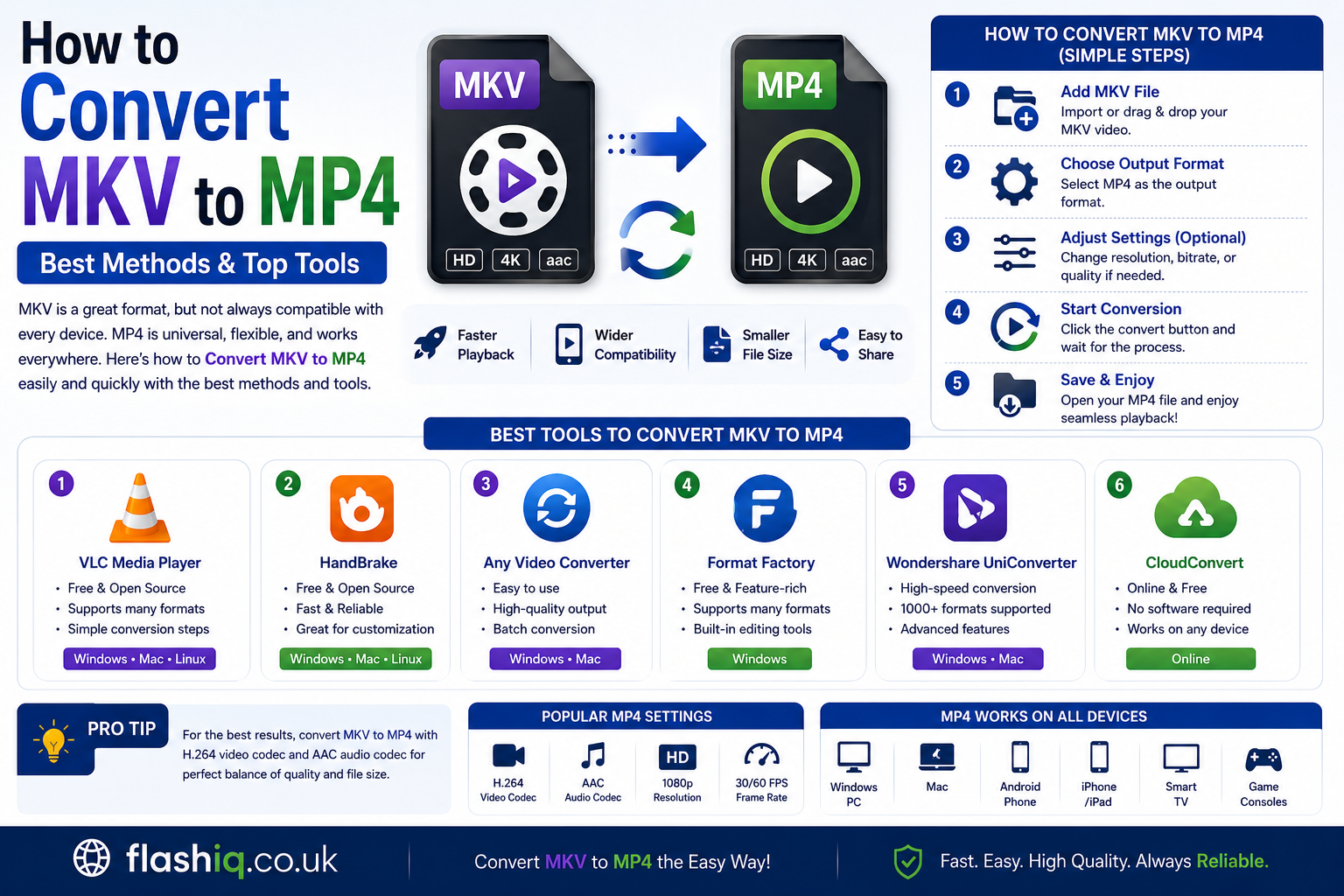
How to Convert MKV to MP4 Best Methods & Top Tools
If you’ve ever downloaded or recorded a video that wouldn’t play on your phone, TV, or favorite media player, you’ve probably wondered how to convert MKV to MP4. While MKV is an excellent format for storing high-quality video, multiple audio tracks, and subtitles, it isn’t supported by every device or application.
That’s where learning how to convert MKV to MP4 becomes valuable. MP4 is one of the most widely supported video formats across Windows, Mac, Android, iPhone, smart TVs, gaming consoles, and web platforms. Converting your videos ensures smoother playback without sacrificing much quality.
Whether you’re looking for a free converter, an online solution, or professional desktop software, this guide explains how to convert MKV to MP4 in the easiest way possible. We’ll compare popular tools, explain key features, and help you choose the best option based on speed, quality, and ease of use.
Quick Summary
If you’re searching for how to convert MKV to MP4, here’s what you need to know:
- MP4 offers better compatibility than MKV.
- Many converters can convert without noticeable quality loss.
- Some software supports batch conversion.
- Hardware acceleration makes conversion much faster.
- Free and premium options are available.
- Online converters work for small files.
- Desktop applications are best for large videos.
- Lossless conversion is possible in many cases.
- Subtitle support varies by software.
- The best converter depends on your specific needs.
How to Convert MKV to MP4: Understanding the Basics
Before learning how to convert MKV to MP4, it’s helpful to understand why these formats differ.
MKV (Matroska Video) is designed as a multimedia container capable of storing:
- Multiple audio tracks
- Subtitle files
- Chapter markers
- High-quality video
- Metadata
MP4, on the other hand, focuses on universal compatibility while maintaining excellent compression. That’s why smartphones, tablets, TVs, streaming platforms, and editing software generally prefer MP4.
When users ask how to convert MKV to MP4, they usually want better compatibility without losing video quality.
Why Convert MKV to MP4?
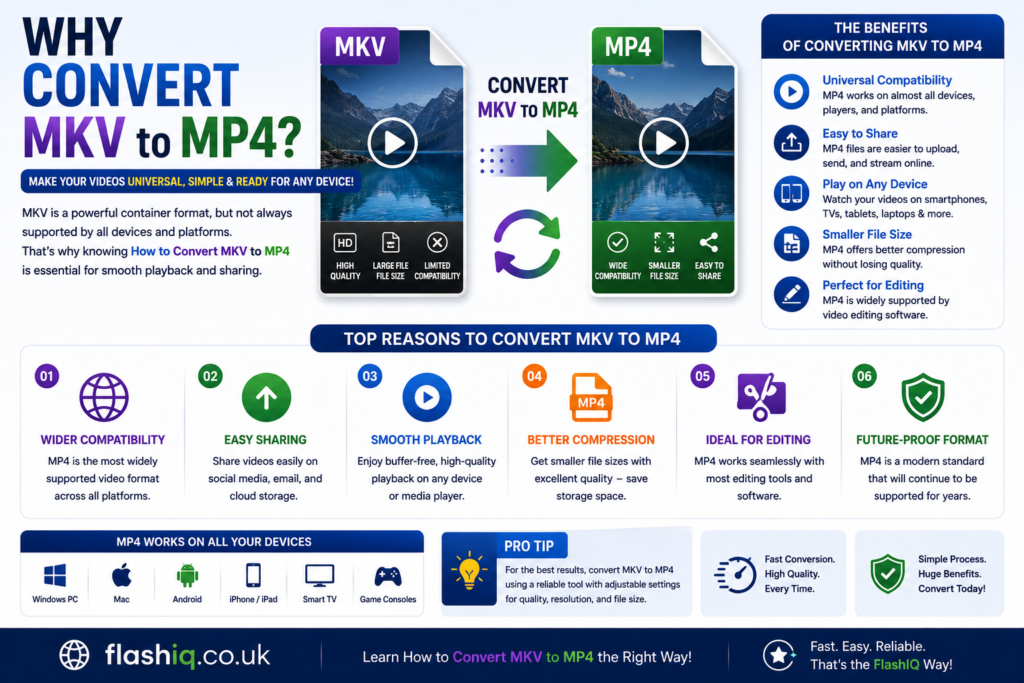
There are many reasons people search for how to convert MKV to MP4.
Better Device Compatibility
Most phones, tablets, TVs, projectors, and gaming consoles support MP4 natively.
Easier Video Editing
Editing software often imports MP4 more reliably than MKV.
Faster Uploads
Websites like YouTube, Facebook, Instagram, and LinkedIn work especially well with MP4 videos.
Smaller File Sizes
Many conversion tools reduce file size while maintaining impressive quality.
Wider Media Player Support
Older media players often struggle with MKV but play MP4 without additional codecs.
MKV vs MP4
| Feature | MKV | MP4 |
|---|---|---|
| Compatibility | Medium | Excellent |
| File Size | Larger | Smaller |
| Subtitle Support | Excellent | Good |
| Streaming | Good | Excellent |
| Editing Support | Medium | Excellent |
| Mobile Support | Limited | Excellent |
| Audio Tracks | Multiple | Limited |
| Compression | Excellent | Excellent |
Best Software to Convert MKV to MP4
Below are some of the best tools for anyone searching how to convert MKV to MP4.
| Software | Platform | Free Version | Batch Conversion | Hardware Acceleration | Best For |
|---|---|---|---|---|---|
| HandBrake | Windows, macOS, Linux | Yes | Yes | Limited | Open-source, high-quality conversions with advanced encoding controls. |
| VLC Media Player | Windows, macOS, Linux | Yes | Limited | No | Users who already use VLC and need occasional video conversion. |
| FFmpeg | Windows, macOS, Linux | Yes | Yes | Yes | Professionals and developers who prefer powerful command-line video processing. |
| Wondershare UniConverter | Windows, macOS | Trial | Yes | Yes | Fast conversions, AI-powered enhancements, and an easy-to-use interface. |
| Freemake Video Converter | Windows | Limited | Yes | Yes | Beginners looking for a straightforward graphical interface for everyday conversions. |
Benefits of Converting MKV to MP4
Improved Compatibility
One major reason users search how to convert MKV to MP4 is device compatibility. MP4 works on nearly every operating system and media player.
Easier Sharing
Sharing MP4 videos through messaging apps, email, and social media is much easier.
Better Streaming Performance
Streaming platforms are optimized for MP4, reducing buffering and playback issues.
Reduced Storage Requirements
Many converters compress videos efficiently while maintaining excellent visual quality.
Faster Editing Workflow
Video editors generally process MP4 faster, making post-production smoother.
Is There Any Quality Loss?
Many people worry about losing quality when learning how to convert MKV to MP4.
The answer depends on your settings:
- Lossless remuxing preserves quality.
- High bitrate encoding minimizes visible quality loss.
- Modern codecs like H.264 and H.265 maintain excellent image quality.
- Hardware acceleration speeds up conversion without significantly affecting output.
If configured properly, converting How to Convert MKV to MP4 can produce nearly identical visual results.
Common Situations Where You Need to Convert MKV to MP4
Watching Videos on Smartphones
Many Android and iPhone apps handle MP4 more efficiently.
Uploading to Social Media
Most platforms recommend MP4 because it processes quickly and maintains compatibility.
Playing Videos on Smart TVs
Many smart TVs offer broader support for MP4 than MKV.
Editing Videos
Professional editing programs often work faster with MP4 files.
Creating Presentations
Business presentations and educational projects usually benefit from MP4 due to its universal playback support.
| Software | Platform | Free Version | Batch Conversion | Hardware Acceleration | Best For |
|---|---|---|---|---|---|
| Any Video Converter | Windows, macOS | Yes | Yes | Yes | Fast conversions with built-in video downloading and basic editing features for everyday users. |
| Movavi Video Converter | Windows, macOS | Trial | Yes | Yes | Beginners who want a modern interface, quick conversion speeds, and high-quality output. |
| WinX HD Video Converter Deluxe | Windows | Trial | Yes | Yes | Converting large HD and 4K videos efficiently while maintaining good video quality. |
| XMedia Recode | Windows | Yes | Yes | Limited | Advanced users who need extensive codec settings, format customization, and device-specific presets. |
| CloudConvert | Web-Based | Yes (Limited) | Limited | Cloud Processing | Users who prefer converting files online without installing desktop software. |
Feature Comparison Table
| Feature | HandBrake | VLC | FFmpeg | UniConverter | Freemake | Any Video Converter | Movavi | WinX HD | XMedia Recode | CloudConvert |
|---|---|---|---|---|---|---|---|---|---|---|
| Windows Support | ✅ | ✅ | ✅ | ✅ | ✅ | ✅ | ✅ | ✅ | ✅ | Browser |
| macOS Support | ✅ | ✅ | ✅ | ✅ | ❌ | ✅ | ✅ | ❌ | ❌ | Browser |
| Linux Support | ✅ | ✅ | ✅ | ❌ | ❌ | ❌ | ❌ | ❌ | ❌ | Browser |
| Batch Conversion | ✅ | Limited | ✅ | ✅ | ✅ | ✅ | ✅ | ✅ | ✅ | Limited |
| GPU Acceleration | Limited | ❌ | ✅ | ✅ | ✅ | ✅ | ✅ | ✅ | Limited | Cloud |
| Subtitle Support | ✅ | Limited | ✅ | ✅ | Limited | Limited | ✅ | ✅ | ✅ | Limited |
| 4K Support | ✅ | ✅ | ✅ | ✅ | ✅ | ✅ | ✅ | ✅ | ✅ | ✅ |
| Built-in Editor | Basic | ❌ | ❌ | ✅ | Basic | Basic | ✅ | Basic | Advanced | ❌ |
| Easy for Beginners | ⭐⭐⭐⭐ | ⭐⭐⭐ | ⭐ | ⭐⭐⭐⭐⭐ | ⭐⭐⭐⭐ | ⭐⭐⭐⭐ | ⭐⭐⭐⭐⭐ | ⭐⭐⭐⭐ | ⭐⭐⭐ | ⭐⭐⭐⭐⭐ |
Pricing Comparison Table
| Software | Free Plan | Paid Version | Starting Price | Best Value |
|---|---|---|---|---|
| HandBrake | Yes | No | Free | ⭐⭐⭐⭐⭐ |
| VLC Media Player | Yes | No | Free | ⭐⭐⭐⭐⭐ |
| FFmpeg | Yes | No | Free | ⭐⭐⭐⭐⭐ |
| Wondershare UniConverter | Trial | Yes | Subscription | ⭐⭐⭐⭐ |
| Freemake Video Converter | Limited | Yes | Affordable License | ⭐⭐⭐ |
| Any Video Converter | Yes | Premium | Affordable | ⭐⭐⭐⭐ |
| Movavi Video Converter | Trial | Yes | Mid-range | ⭐⭐⭐⭐ |
| WinX HD Video Converter Deluxe | Trial | Yes | Mid-range | ⭐⭐⭐⭐ |
| XMedia Recode | Yes | No | Free | ⭐⭐⭐⭐⭐ |
| CloudConvert | Limited | Pay-as-you-go | Flexible | ⭐⭐⭐⭐ |
How to Choose the Best MKV to MP4 Converter
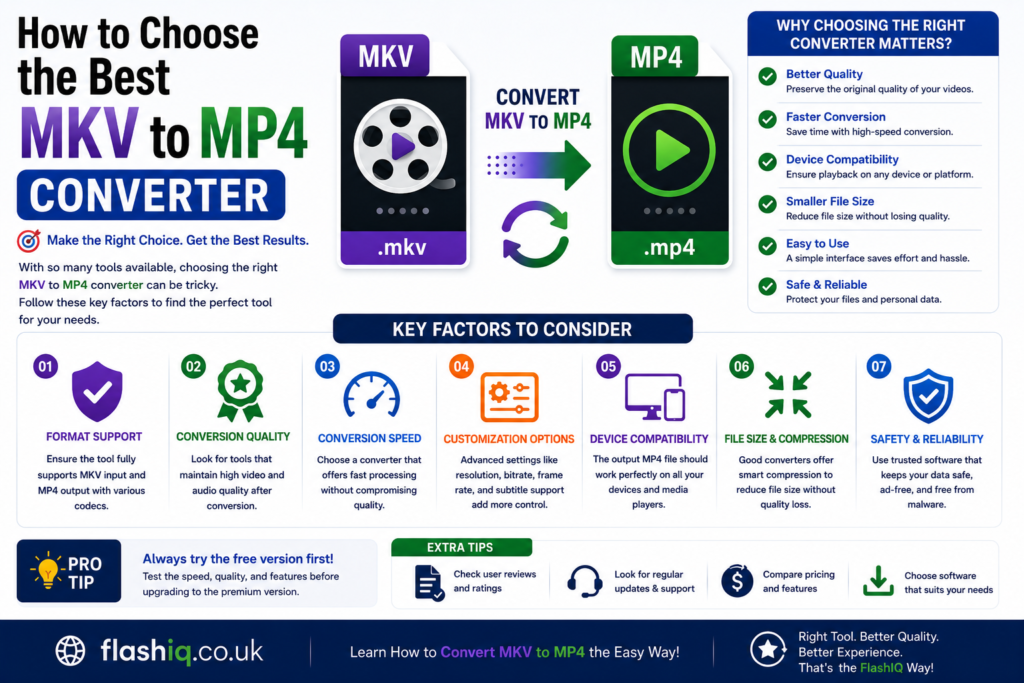
Choosing the right tool depends on your specific requirements. If you’re learning how to convert MKV to MP4, consider these factors before making a decision:
Ease of Use
Beginners should select software with a simple interface and ready-made presets. This reduces the learning curve and speeds up the conversion process.
Conversion Speed
If you frequently convert large video files, choose software with GPU or hardware acceleration for significantly faster performance.
Output Quality
Look for tools that allow you to preserve the original video resolution, bitrate, and audio quality. Some applications even support lossless conversion.
Batch Processing
Converting multiple videos at once can save considerable time. Batch conversion is especially useful for media libraries and professional workflows.
Supported Formats
The best converters handle more than just MKV and MP4. Support for AVI, MOV, WMV, FLV, and WebM provides greater flexibility.
Additional Features
Some software includes video editing, subtitle management, compression, screen recording, or AI-powered enhancements, making it more versatile.
Our Recommendation
After comparing the available options, these are our top recommendations:
- Best Free Converter: HandBrake
- Best for Beginners: Movavi Video Converter
- Best Professional Tool: FFmpeg
- Best Premium Converter: Wondershare UniConverter
- Best Online Converter: CloudConvert
- Best Overall Choice: HandBrake, thanks to its excellent balance of performance, quality, customization, and completely free open-source licensing.
If your goal is simply learning how to convert MKV to MP4 with minimal effort, HandBrake remains one of the best solutions for most users.
Conclusion
Learning how to convert MKV to MP4 is useful for anyone who wants better compatibility across smartphones, tablets, smart TVs, gaming consoles, media players, and video editing software. While MKV is excellent for storing high-quality media with multiple audio tracks and subtitles, MP4 remains the most universally supported format.
Whether you choose a free converter like HandBrake, an advanced solution such as FFmpeg, or a premium application like Wondershare UniConverter, the right software depends on your workflow, experience level, and desired features. By selecting the appropriate converter and using the correct settings, you can convert videos quickly while preserving excellent image and audio quality.
Frequently Asked Questions (FAQs)
1. How do I convert MKV to MP4 without losing quality?
Use a converter that supports lossless remuxing or select a high-quality bitrate and modern codecs such as H.264 or H.265.
2. Is MP4 better than MKV?
MP4 is generally better for compatibility, while MKV is better for storing multiple audio tracks, subtitles, and high-quality media.
3. Can I convert MKV to MP4 for free?
Yes. Free tools like HandBrake, VLC Media Player, FFmpeg, and XMedia Recode allow you to convert MKV to MP4 without cost.
4. Which converter is fastest?
Applications with hardware acceleration, such as Wondershare UniConverter, WinX HD Video Converter Deluxe, and Movavi Video Converter, usually provide the fastest conversion speeds.
5. Does converting MKV to MP4 reduce file size?
It can. Depending on the compression settings and codec used, MP4 files are often smaller than MKV files while maintaining good quality.
6. Can I keep subtitles after conversion?
Yes. Many converters allow you to copy, embed, or burn subtitles into the MP4 file during conversion.
7. Which format works best for YouTube?
MP4 encoded with the H.264 video codec and AAC audio is the most widely recommended format for YouTube uploads.
8. Is online conversion safe?
Online converters are generally suitable for small, non-sensitive files. For large videos or private content, desktop software offers better privacy, speed, and reliability.
Quick Bio
FlashIQ publishes practical technology guides, software reviews, troubleshooting tutorials, and digital productivity tips. Our content is designed to help beginners and professionals make informed decisions with clear, accurate, and up-to-date information about today’s most useful software and technology tools.