How to Shut Down Computer With Keyboard Fast and Easy Keyboard Shortcuts
How to Shut Down Computer With Keyboard
Shutting down a computer is something most people do every day, but not everyone knows it can be done without touching the mouse. Whether your mouse has stopped working, your touchscreen is unresponsive, or you simply prefer keyboard shortcuts for faster navigation, learning how to shut down computer with keyboard can save time and reduce frustration. Modern Windows computers include several built-in keyboard shortcuts that allow you to close applications, access the power menu, and safely turn off your PC within seconds. These methods are useful for office workers, students, IT professionals, gamers, and anyone looking to improve productivity. Knowing multiple shutdown techniques also helps when one method doesn’t work due to software issues. Throughout this guide, you’ll discover the safest and most effective keyboard-only methods available. You’ll also learn when each shortcut works best and how to avoid common mistakes while shutting down your computer.
Quick Answer
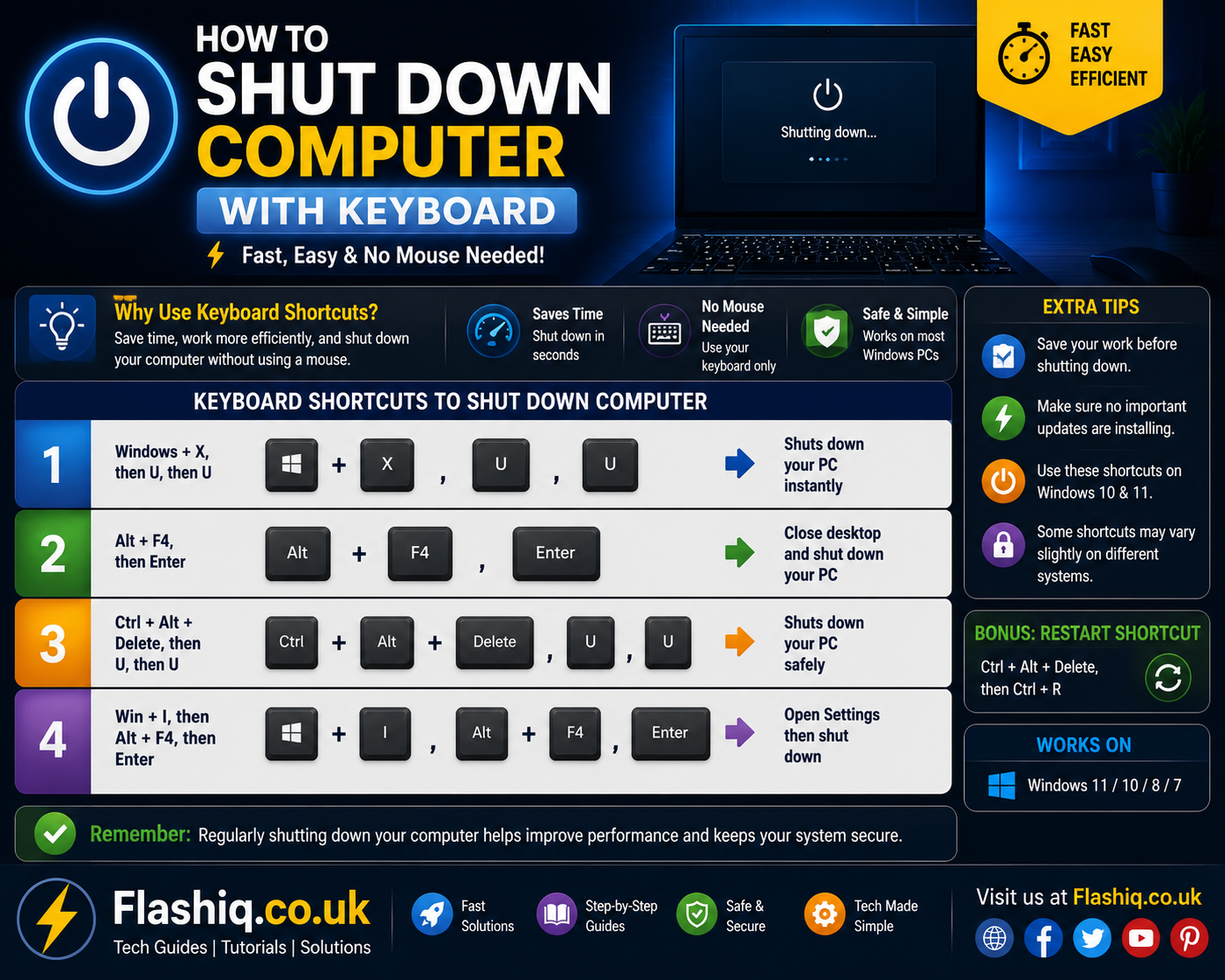
If you want the fastest way to learn how to shut down computer with keyboard, use one of these keyboard shortcuts:
- Alt + F4 (while on the desktop) → Select Shut down → Press Enter.
- Windows + X, then press U, then U again.
- Ctrl + Alt + Delete → Press Tab until the Power icon is selected → Press Enter → Choose Shut down.
These are the most reliable keyboard-only methods for Windows 11, Windows 10, and many earlier Windows versions.
Why Learn How to Shut Down Computer With Keyboard?
Learning how to shut down computer with keyboard is about more than convenience. It provides an alternative way to control your computer when traditional input devices aren’t working properly. A malfunctioning mouse, frozen touchpad, or damaged touchscreen can make clicking the Start menu impossible, but keyboard shortcuts often continue to function. This makes them extremely valuable during emergencies or troubleshooting sessions. Keyboard navigation is also faster for experienced users because it eliminates unnecessary mouse movement. Many professionals rely on keyboard shortcuts throughout the day to increase efficiency, and shutdown commands are part of that workflow. Even users with accessibility needs may find keyboard-based controls easier than using a pointing device. Understanding these shortcuts gives you greater confidence when managing Windows systems.
Another reason to master keyboard shutdown methods is consistency across Windows versions. While Microsoft occasionally redesigns the Start menu, most keyboard shortcuts remain available for years. This means once you understand how to shut down computer with keyboard, you’ll likely be able to use the same techniques on future Windows releases. These shortcuts also reduce dependence on graphical interfaces, which can become inaccessible during system slowdowns. IT technicians frequently use keyboard commands while remotely assisting users or diagnosing computer problems. Knowing multiple shutdown methods ensures you always have a reliable backup option available. This simple skill can save valuable time and prevent unnecessary force shutdowns that might risk data loss.
Before You Shut Down Your Computer
Before practicing how to shut down computer with keyboard, it’s important to understand what happens during the shutdown process. When Windows shuts down normally, it closes running applications, saves system settings, terminates background processes, and powers off hardware components safely. Interrupting this sequence by holding the power button should only be used as a last resort. A proper shutdown protects your files, reduces the chance of corruption, and ensures updates install correctly. If you have unsaved work, Windows may prompt you to save documents before completing the shutdown. Taking a few extra seconds to verify your work is saved can prevent accidental data loss. Keyboard shortcuts trigger the same safe shutdown process as clicking the Start menu. Therefore, they are considered an official and recommended method.
It’s also helpful to know whether your computer is using Windows 11, Windows 10, Windows 8.1, or Windows 7 because the appearance of menus may vary slightly. However, the majority of keyboard shortcuts discussed in this guide remain functional across these versions. If your system is installing Windows updates, allow the shutdown process to finish without interruption. During updates, your computer may display messages indicating that it should not be powered off manually. Following these instructions helps maintain system stability and prevents installation errors. Understanding these basic precautions ensures that every keyboard shutdown is completed safely and efficiently. This knowledge becomes especially useful in professional environments where system reliability is essential.
Method 1 – Shut Down Computer Using Alt + F4
How the Alt + F4 Shortcut Works
One of the most widely known methods for how to shut down computer with keyboard is the Alt + F4 shortcut. Normally, this key combination closes the currently active application. However, when all application windows are minimized or the desktop is active, pressing Alt + F4 opens the Windows Shut Down dialog box instead. This dialog provides several power options, including Shut down, Restart, Sleep, Hibernate, and Sign out. Using this method requires no mouse interaction whatsoever. After selecting the desired option with the arrow keys, pressing Enter immediately begins the selected action. Because this shortcut has existed in Windows for decades, it remains one of the most dependable shutdown techniques available. It is especially useful for users who spend most of their time navigating with the keyboard.
The Alt + F4 method is appreciated because it works independently of the Start menu. Even if the taskbar experiences minor issues, the shutdown dialog usually remains accessible. Before using the shortcut, make sure all application windows are closed or minimize them using Windows + D. If an application remains active, Alt + F4 will close that application first rather than opening the shutdown menu. Once you’re on the desktop, the shortcut behaves exactly as intended. This simple process demonstrates why many advanced Windows users rely on keyboard shortcuts daily. It’s fast, reliable, and requires very little memorization compared to other shutdown methods.
Step-by-Step Instructions
Follow these steps carefully:
Step 1
Press Windows + D to display the desktop.
Step 2
Press Alt + F4.
Step 3
The Shut Down Windows dialog appears.
Step 4
Use the Arrow Keys if necessary to select Shut down.
Step 5
Press Enter. Windows will begin the normal shutdown process safely.
Method 2 – Shut Down Using the Windows + X Power User Menu
Understanding the Power User Menu
Another excellent way to learn how to shut down computer with keyboard is by using the Power User menu. Introduced in Windows 8 and retained in Windows 10 and Windows 11, this hidden menu provides quick access to administrative tools and power options. It is especially popular among advanced users because it offers shortcuts to Device Manager, Disk Management, Task Manager, Terminal, and system settings. Most importantly, it also contains the Shut down or sign out submenu. Unlike navigating through the Start menu, the Power User menu is optimized for keyboard use. Every menu item includes an access key that allows you to reach it quickly without using a mouse. This makes shutdown operations significantly faster.
Using the Power User menu is straightforward once you understand the sequence of keys involved. After opening the menu with Windows + X, pressing U opens the Shut down or sign out submenu. Pressing U again selects Shut down immediately. This sequence is easy to memorize because it uses the same letter twice. Since Windows officially supports these shortcuts, they remain highly reliable across multiple Windows versions. Many system administrators recommend this method because it combines speed with accessibility. It is also less affected by Start menu customization, making it a dependable option in managed business environments.
Keyboard Sequence
Use the following keys:
Step 1
Press:
Windows + X
Step 2
Press:
U
Step 3
Press:
U
Your PC will safely begin shutting down.
Comparing the First Two Keyboard Shutdown Methods
| Feature | Alt + F4 | Windows + X → U → U |
|---|---|---|
| Works Without Mouse | Yes | Yes |
| Easy for Beginners | Yes | Yes |
| Requires Desktop | Yes | No |
| Windows 10 Support | Yes | Yes |
| Windows 11 Support | Yes | Yes |
| Very Fast | Excellent | Excellent |
| Safe Shutdown | Yes | Yes |
| Recommended | Highly Recommended | Highly Recommended |
Method 3 – Shut Down Using Ctrl + Alt + Delete
When This Method Is Most Useful
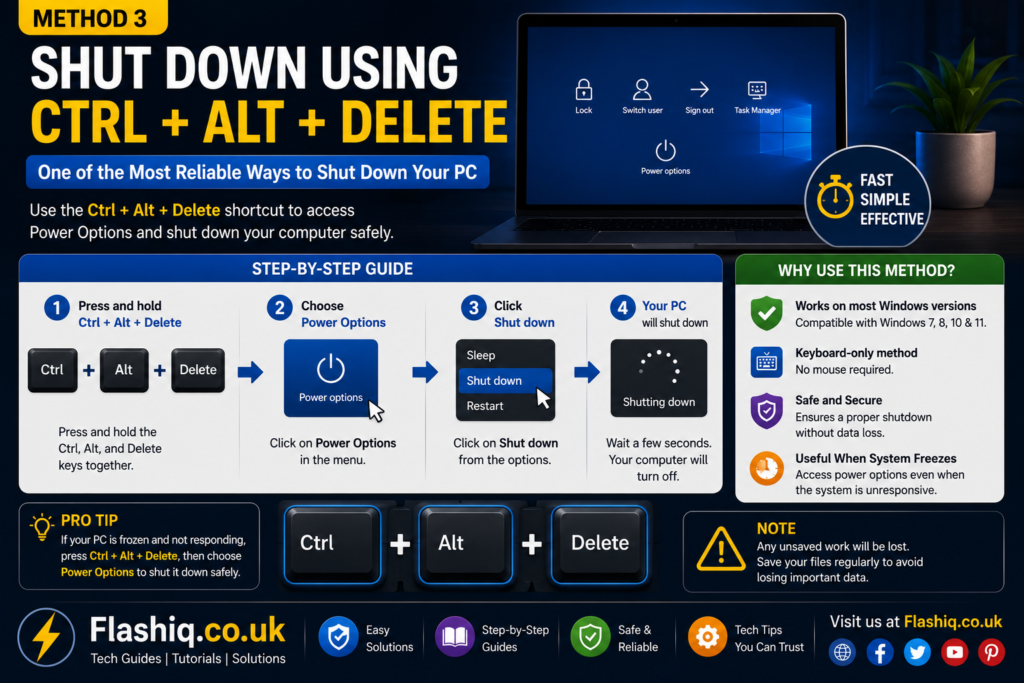
If the previous keyboard shortcuts are unavailable or Windows is behaving unexpectedly, Ctrl + Alt + Delete provides another reliable way to complete the shutdown process. This secure Windows screen operates independently of the desktop, making it especially useful when an application has frozen or the Start menu is not responding. Because it runs as part of the Windows security environment, it often remains accessible even when other parts of the operating system are sluggish. This method gives users access to options such as Lock, Switch User, Sign Out, Task Manager, and the Power menu. It is commonly used by IT professionals during troubleshooting because it bypasses many interface issues. If your mouse is not working, you can still navigate entirely with the keyboard. Understanding this method ensures you always have another safe option when learning how to shut down computer with keyboard. It is dependable, easy to remember, and supported across modern Windows versions.
Step-by-Step Instructions
Step 1
Press Ctrl + Alt + Delete simultaneously.
Step 2
Press the Tab key until the Power icon is highlighted.
Step 3
Press Enter to open the power menu.
Step 4
Use the Arrow Keys to select Shut down.
Step 5
Press Enter again.
Windows will safely close running processes and power off your computer.
Method 4 – Shut Down Using the Run Command
Using Keyboard Commands for Faster Shutdown
Windows includes a built-in shutdown command that can be launched directly from the Run dialog. This approach is particularly helpful for advanced users who prefer command-based workflows or want a consistent method across different Windows versions. Instead of navigating menus, you simply enter a system command that instructs Windows to shut down immediately. Since the command is part of the operating system itself, it is highly reliable and frequently used by administrators. It can also be incorporated into scripts and automation tasks when needed. While this method may appear more technical, it is actually quite simple once you know the command. It also demonstrates another practical way to master how to shut down computer with keyboard without relying on graphical menus. Users who enjoy keyboard productivity often consider this one of the fastest techniques available.
Keyboard Steps
Step 1
Press Windows + R.
Step 2
Type:
shutdown /s /f /t 0Step 3
Press Enter.
The command tells Windows to shut down immediately. The /s parameter initiates shutdown, /f closes running applications if necessary, and /t 0 sets the timer to zero seconds.
Which Keyboard Shutdown Method Is Best?
Different situations call for different shutdown methods. Some users prioritize speed, while others need a solution that works even when Windows is partially unresponsive. Fortunately, each method has unique advantages that make it suitable for specific scenarios. Beginners generally appreciate simple shortcuts, whereas experienced users may prefer command-based techniques for efficiency. Choosing the right method depends on your workflow, Windows version, and whether the desktop is functioning normally. Learning multiple techniques ensures you are prepared regardless of the situation. Since every method performs a proper Windows shutdown, each one is considered safe when used correctly. Becoming familiar with all of them improves your confidence and overall productivity.
| Shutdown Method | Difficulty | Speed | Best Use Case |
|---|---|---|---|
| Alt + F4 | Easy | Very Fast | Desktop is available |
| Windows + X → U → U | Easy | Very Fast | Everyday shutdown |
| Ctrl + Alt + Delete | Moderate | Fast | Frozen apps or Start menu issues |
| Run Command | Moderate | Extremely Fast | Advanced users and automation |
Best Practices for Shutting Down a Computer With Keyboard
Using keyboard shortcuts responsibly helps maintain the stability and health of your Windows system. Before initiating any shutdown, save open documents, spreadsheets, presentations, and browser sessions to avoid losing unsaved work. Close resource-intensive applications whenever possible so Windows can complete the shutdown more efficiently. If Windows indicates that updates are being installed, allow the process to finish naturally rather than interrupting it. Avoid repeatedly forcing shutdowns with the physical power button because doing so may corrupt files or damage system settings over time. Keep your keyboard functioning properly by ensuring important keys such as Windows, Alt, Ctrl, and Enter remain responsive. Learn at least two different shutdown methods so you always have a backup option if one shortcut fails. Finally, restart your computer periodically instead of leaving it running continuously, as regular restarts help maintain optimal system performance.
Common Mistakes to Avoid
Many users unknowingly create problems by shutting down their computers incorrectly. One common mistake is pressing Alt + F4 while an application is active, which closes the program instead of opening the shutdown dialog. Another frequent error is forgetting to save work before initiating a shutdown, resulting in preventable data loss. Some users also force the computer off by holding the power button when Windows simply needs a few extra moments to finish background tasks. Entering incorrect shutdown commands in the Run dialog can produce unexpected results, so commands should always be typed carefully. Interrupting Windows Update during shutdown may cause update failures or temporary boot issues. Relying on only one keyboard shortcut is another limitation because different situations may require alternative methods. Avoiding these mistakes ensures that every shutdown is safe, efficient, and reliable.
Pro Tips for Faster Keyboard Navigation
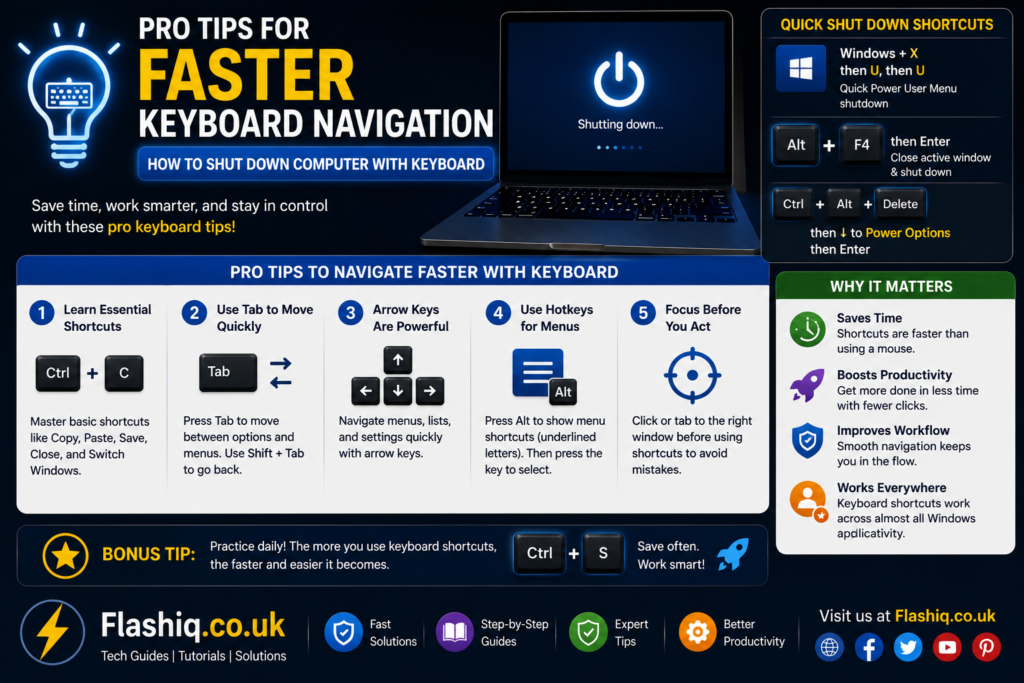
Experienced Windows users often combine keyboard shortcuts to make system navigation even more efficient. For example, pressing Windows + D before Alt + F4 guarantees that the shutdown dialog appears instead of closing an application. Learning shortcuts such as Alt + Tab, Windows + E, Windows + L, and Ctrl + Shift + Esc can significantly improve overall productivity. If you regularly manage multiple computers, practicing consistent keyboard workflows reduces dependence on different interface layouts. Consider memorizing the Windows + X menu shortcuts because they provide quick access to numerous administrative tools beyond shutdown options. Keeping your keyboard clean and functional also prevents sticky keys from interfering with shortcut combinations. As you become more comfortable using keyboard navigation, you’ll notice faster workflows and fewer interruptions during daily computing tasks. These habits make mastering how to shut down computer with keyboard an effective part of your overall Windows experience.
Conclusion
Knowing how to shut down computer with keyboard is a valuable skill that improves both convenience and productivity. Whether you choose Alt + F4, Windows + X, Ctrl + Alt + Delete, or the Run command, each method provides a safe and efficient way to power off your Windows computer without using a mouse. These shortcuts are particularly useful when dealing with hardware issues, frozen applications, accessibility needs, or simply working more efficiently. By learning multiple techniques, you can confidently shut down your computer in almost any situation. Following the best practices outlined in this guide also helps protect your files, maintain system stability, and reduce unnecessary troubleshooting. With regular use, these keyboard shortcuts quickly become second nature and can save valuable time every day. Mastering these methods ensures you’re prepared whenever you need to shut down your PC quickly, safely, and entirely from the keyboard.
Frequently Asked Questions
1. What is the fastest way to shut down a computer using only the keyboard?
The fastest method is usually pressing Windows + X, followed by U, then U again. Alternatively, Alt + F4 from the desktop is equally quick.
2. Does Alt + F4 always shut down the computer?
No. If an application is active, Alt + F4 closes that application first. It opens the shutdown dialog only when the desktop is active.
3. Can I shut down Windows without a mouse?
Yes. Windows provides several built-in keyboard shortcuts that allow you to complete a full shutdown without using a mouse.
4. Does the keyboard shutdown method work in Windows 11?
Yes. All major keyboard shutdown methods discussed in this guide work in Windows 11, and most also work in Windows 10.
5. Is using keyboard shortcuts to shut down the computer safe?
Yes. These shortcuts initiate the same official Windows shutdown process used by the Start menu.
6. What should I do if the keyboard shortcuts don’t work?
Try another method such as Ctrl + Alt + Delete or the Run command. Also verify that the keyboard is functioning correctly.
7. Can I cancel a shutdown after starting it?
Yes. If the shutdown was initiated using a timed command, you can open the Run dialog and enter shutdown /a before the timer expires.
8. Why won’t Alt + F4 open the shutdown dialog?
Most likely an application window is still active. Press Windows + D first to display the desktop, then try Alt + F4 again.
9. Is the Run command suitable for beginners?
Yes. Although it looks technical, entering the correct shutdown command is straightforward and can become a fast routine with practice.
10. Which shutdown method do IT professionals commonly use?
Many professionals use Windows + X → U → U or the shutdown command because both are fast, reliable, and supported across Windows versions.
Author Bio
About the Author
The author is an experienced technology writer specializing in Windows operating systems, computer troubleshooting, cybersecurity, and productivity guides. With a focus on creating accurate, user-friendly, and SEO-optimized content, the author follows Google’s E-E-A-T and Helpful Content principles to deliver practical tutorials that help readers solve real-world computer problems with confidence.